Framer client feedback without inviting clients into Framer
Framer's comments work well for your team inside the project. Many clients would rather not join a design tool to say a headline is too long. Here is how to get their feedback on the published site instead, with your effects still running.
Why feedback on Framer sites is harder than it looks
Framer sites are built around motion: content that slides in on scroll, hover effects, page transitions. Those are the parts clients notice, and the parts that get lost in feedback.
- A screenshot freezes one frame, so "the bit that slides in" could mean several things.
- Notes by email rarely say which screen size they were looking at, and Framer layouts often change a lot between desktop, tablet and phone.
- Framer's comments live on the canvas, which is ideal for collaborators but asks clients to join your project and learn an editor.
Framer comments or a review link?
| Framer comments | Review link of the published site | |
|---|---|---|
| Where notes are left | On the canvas, inside the project | On the published site, in any browser |
| Client needs | To join the project as a viewer (free) | Nothing but the link |
| Sees effects as visitors do | In preview | Yes, the live site runs |
| Best for | Your team and collaborators | Clients and stakeholders |
Many studios use both: Framer comments between designers, and a review link for the client.
Step 1: publish the version you want reviewed
Click Publish in Framer. The review always shows what is published, not what is on your canvas, so publish right before you share and again after each batch of fixes. If Password Protection is on in the project's General settings, turn it off for the round, because the password screen is a sign-in form that the review can't get past.
Step 2: make the review link
Paste the published address, framer.website, framer.app or your own domain, into HTMLAnnotate. You get a review link for the client and a private manage link for you. Every page is reachable from the review link, and each page keeps its own comments. Sign in before you start if the round will take more than a day, so the link lasts up to 14 days on a free account.
Step 3: ask the client to watch first, then comment
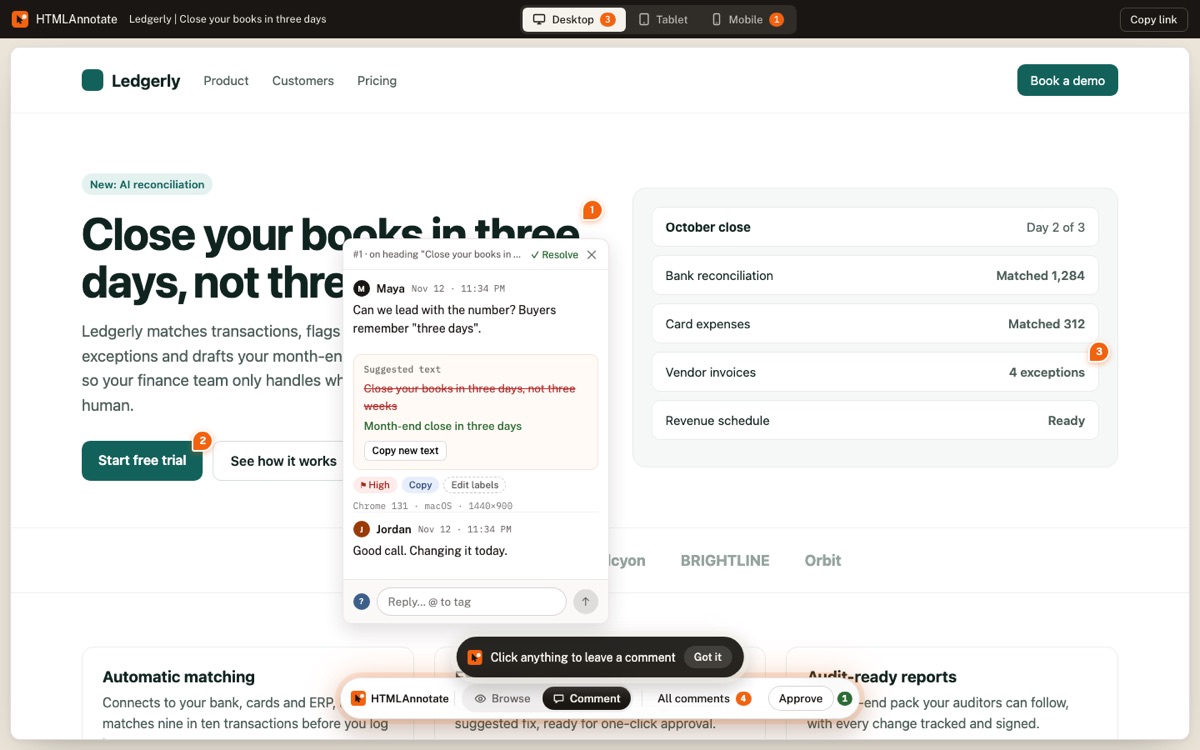
Clients sometimes comment on the first frame of an animation before it finishes. Ask them to scroll each page in Browse mode first, then switch to Comment mode and click the heading, card or image they mean. Point out the Tablet and Mobile switches at the top, since phone layouts are where most Framer issues hide.
Step 4: sort the notes
Label each comment Copy, Design, Bug, Question or Idea, and set a priority. Each one shows the page, the view, the browser and screen size, and a screenshot of what the client saw, so you can tell a phone problem from a laptop problem before opening Framer. Reply in the thread when something is unclear.
Step 5: fix on the canvas and publish again
Work through the list in Framer, or press Copy for AI to get every open note as one brief and paste it into ChatGPT or Claude to plan the changes. Publish again. The review fetches the site fresh each time it opens, so the client sees the fixes in place. Resolve each comment as you confirm it.
Step 6: approval
When the client is happy they press Approve, which records who approved and when. Switch comments off on the link, turn Password Protection back on if you use it, and connect the custom domain if it isn't already.
More detail, including breakpoint widths and what can't be reviewed, is on HTMLAnnotate for Framer.
Questions
Do clients need a Framer account to give feedback?
To use Framer's own comments they join the project as a viewer, which is free. With a review link of the published site, they don't need any account, only a name and email the first time they comment.
Which Framer address should I share?
Whichever address the site is published on: the free framer.website or framer.app subdomain, or your custom domain. Publish right before you share, because the review shows the last published version, not the canvas.
Will Framer animations and transitions still work in the review?
Yes. The published site runs with its own scripts, so scroll effects, hover states and page transitions behave as they do for visitors. Very heavy 3D effects may run a little slower.
Can I review a Framer site with Password Protection on?
Not with a tool that loads the page. Framer's password screen is a sign-in form. Turn Password Protection off in the project's General settings for the round, then switch it back on.
How do I know which breakpoint a comment is about?
Comments stay in the view they were left in. HTMLAnnotate's Tablet view is 820 pixels wide and Mobile is 390 pixels, so compare those with your Tablet and Phone breakpoint widths in Framer.
Paste your Framer site's address and get a review link. Free, and clients never need an account.
Start a free review