How to review a page Claude made, with your client
Claude can write a full landing page in a minute. Getting a client to review it, and turning their notes into changes, takes longer. This guide sets up a loop where Claude shares the page, your client comments on it, and Claude reads those comments back.
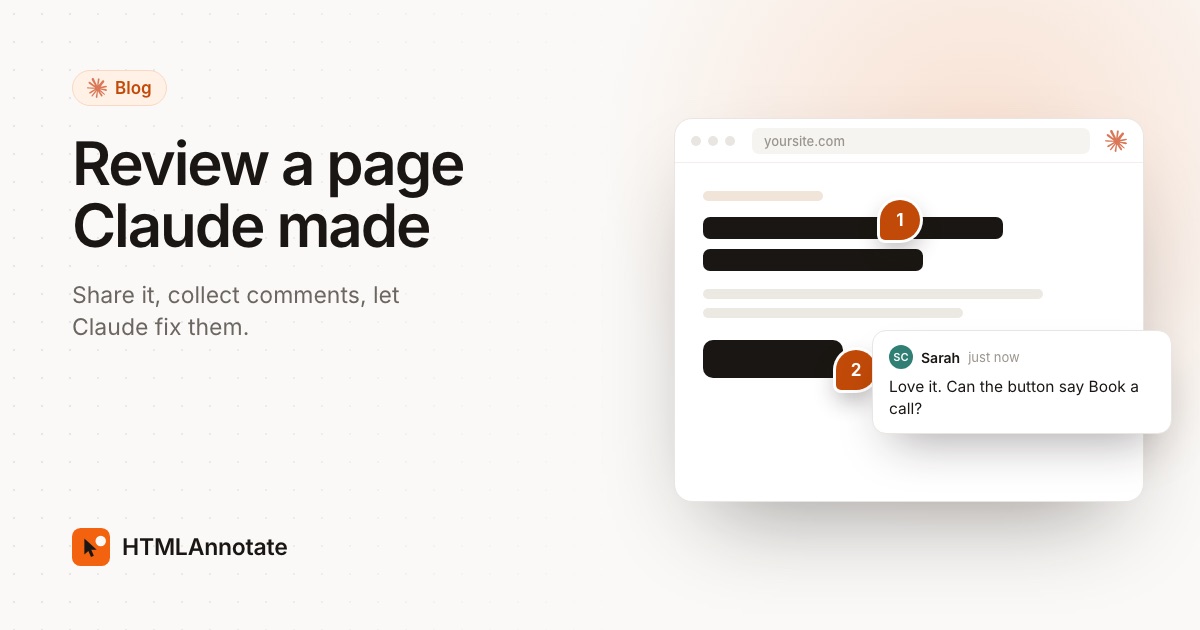
The loop you are setting up
- Claude writes or updates the page.
- Claude shares it through HTMLAnnotate and gives you a review link and a private manage link.
- You send the review link to your client. They click on the page to comment.
- You give Claude the manage link. It reads the comments, makes the changes and marks each comment resolved.
Nothing is copied by hand, and every comment is tied to the exact part of the page it is about, so Claude doesn't have to guess what "this section" means.
Step 1: add the HTMLAnnotate connector to Claude
You do this once. In Claude, open Customize, then Connectors, then Add, Custom, Web. Name it HTMLAnnotate and paste this server address:
https://mcp.htmlannotate.comLeave authentication off and select Connect. Then switch HTMLAnnotate on in a chat's tools menu. There is no account or API key to set up. In Claude Code, run this instead:
claude mcp add --transport http --scope user htmlannotate https://mcp.htmlannotate.comTo check it works, ask Claude: "Share a simple test page on HTMLAnnotate." The MCP setup page has the steps for ChatGPT, Cursor, VS Code and others.
Step 2: ask Claude to share the page
Once Claude has written the page, ask something like: "Share this page on HTMLAnnotate for client feedback." Claude sends the HTML and replies with two links:
- The review link, which you send to your client.
- The manage link, which stays with you. Anyone holding it can read and resolve comments, so don't forward it.
Claude can also ask for your email so HTMLAnnotate tells you when someone comments. If it has a live website or staging address instead of a file, it can share that link for review too.
Step 3: send the link to your client
Send the review link with a short note about what to check, for example: "First draft of the landing page. Please check the headline, the offer and how it looks on your phone." Your client opens the link in any browser, enters their name and email once, and clicks any heading, button or image to comment. They can switch to the Mobile view to comment on the phone layout, and suggest new wording for any line of text.
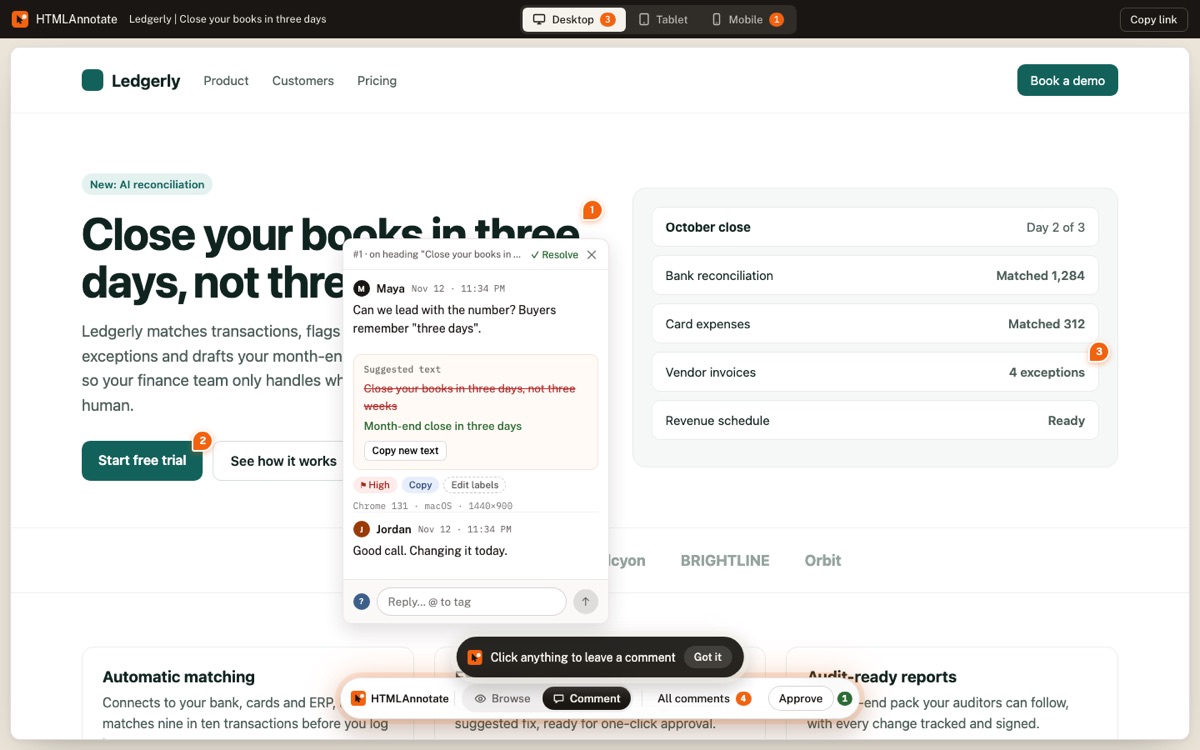
Step 4: let Claude read the comments and make the changes
When the comments are in, paste the manage link into your chat and ask: "Read the comments on this page and make the changes." Claude gets each comment with the element it is pinned to, the view it was left in (desktop, tablet or phone) and any suggested wording, so it can find the right spot in the code.
Ask it to reply to anything it isn't sure about rather than guessing, and to mark each comment resolved once the change is made. You can read the replies and resolved comments on the manage page.
Step 5: share the next version
Ask Claude to publish the updated page as a new version of the same review page. Your client keeps the same link and sees a clean page, while the first version keeps its comments for reference. Then repeat until they press Approve.
Tips for smoother rounds
- One round, one focus. Ask for copy in round one and visual polish in round two, so comments don't pile up.
- Check the phone view yourself first. Pages written by AI tools often look fine on desktop and cramped on a phone.
- Keep facts out of Claude's hands. Prices, names and claims on the page should come from you. Ask your client to check them in the review.
- Links last 1 day through the connector. If a review will take longer, upload the final HTML file to HTMLAnnotate while signed in, so the link lasts up to 14 days on a free account.
Questions
Does my client need a Claude account?
No. They get a normal web link. They open it in any browser, give their name and email once, and click on the page to comment.
What does it cost?
The connector is free and needs no account or API key. Pages shared through it last 1 day. To keep a page longer, upload the same HTML file to HTMLAnnotate while signed in: free accounts keep links up to 14 days, and Pro and Team keep them for good.
Can Claude read the comments without me copying them?
Yes. Give Claude the private manage link for the page and it can read every comment, including which element it is about, the screen size and any suggested wording. It can also reply and mark comments resolved.
Does this work with Claude Code too?
Yes. Add the server with one command in Claude Code, and it can share pages and read comments the same way. ChatGPT, Cursor and VS Code work too.
What if I don't want to set up a connector?
Ask Claude for the page as one self-contained HTML file, download it, and upload it at htmlannotate.com/new. You still get a review link, and you can press Copy for AI to paste all the comments back into Claude.
Add HTMLAnnotate to Claude and share your first page for review. Free, and clients never need an account.
Start a free review