How to review HTML written by ChatGPT or Claude
ChatGPT, Claude, Cursor and similar tools can write a complete landing page in one go. Writing is no longer the slow part. Reviewing is. This guide is a simple loop for turning an AI draft into a page your team is happy with.
Updated 12 November 2026 · by the HTMLAnnotate team
Why AI pages need a real review
AI-written pages look finished at first glance, which is exactly why they need a careful review. Common problems:
- Confident but wrong claims. Made-up statistics, features you do not have, or customer logos you are not allowed to use.
- Generic copy. Headlines that could belong to any company in your category.
- Layout issues on phones. AI tools often test nothing on small screens.
- Accessibility gaps. Missing alt text, low contrast, buttons that are really just styled text.
Pasting screenshots back into the chat does not fix this. The AI cannot see exactly which element you mean, and feedback from several teammates ends up scattered across messages.
Get the page out of the chat
First, turn the AI's output into something people can open:
- If the AI gave you code: copy it into a file named something like
landing.html. Make sure styles and images are inside the file, or linked from public addresses, so it works on its own. - If the AI tool can publish: some tools give you a shareable preview link. Copy that address.
- If it is in a code project: deploy a preview or open the built page and save it.
HTMLAnnotate accepts one self-contained HTML file (up to 1 MB on Free, 10 MB on Pro and Team), or any public address.
The review loop
- Upload the file or paste the link at htmlannotate.com/new. You get a review link.
- Share it with your team. Nobody needs an account.
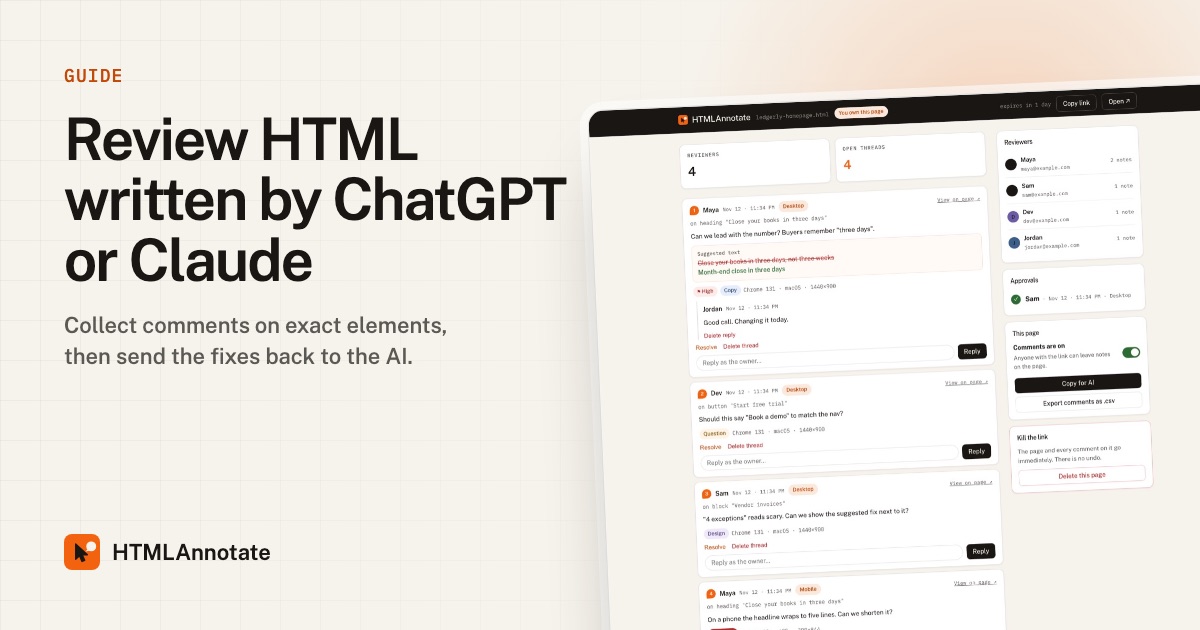
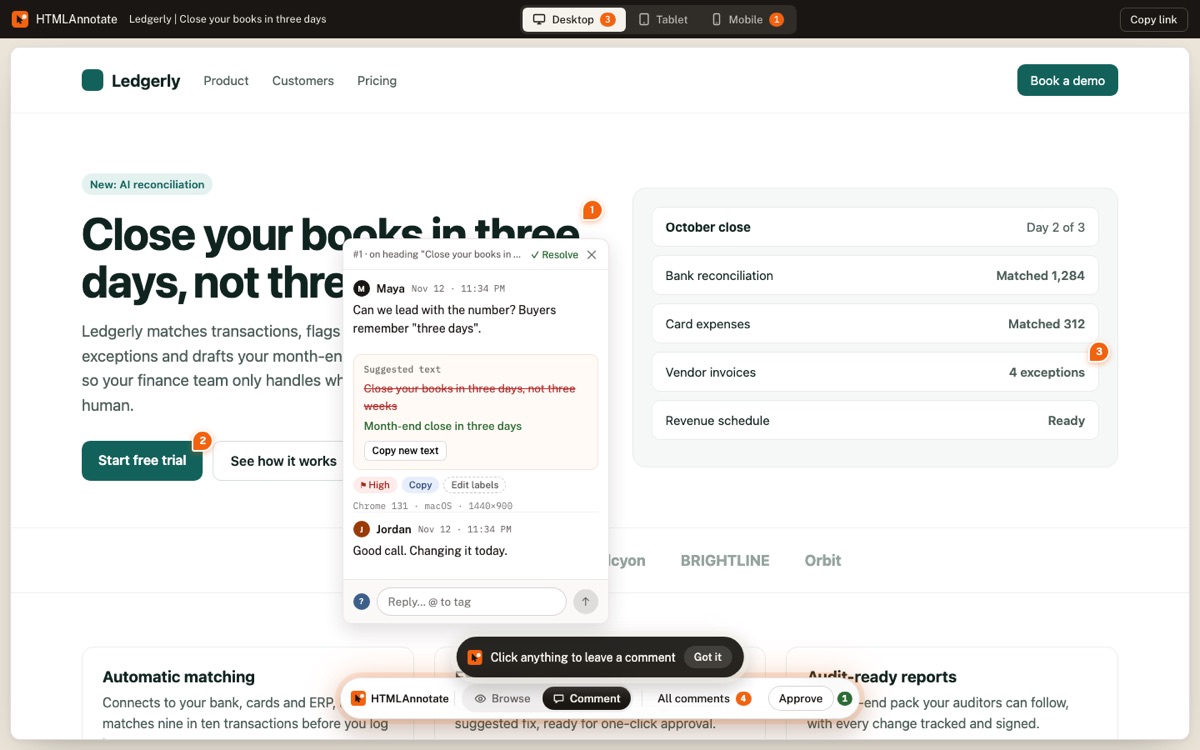
- Collect comments on exact elements. Teammates click the heading, paragraph, image or button they mean. For copy changes, they use a suggested text edit with the exact new wording.
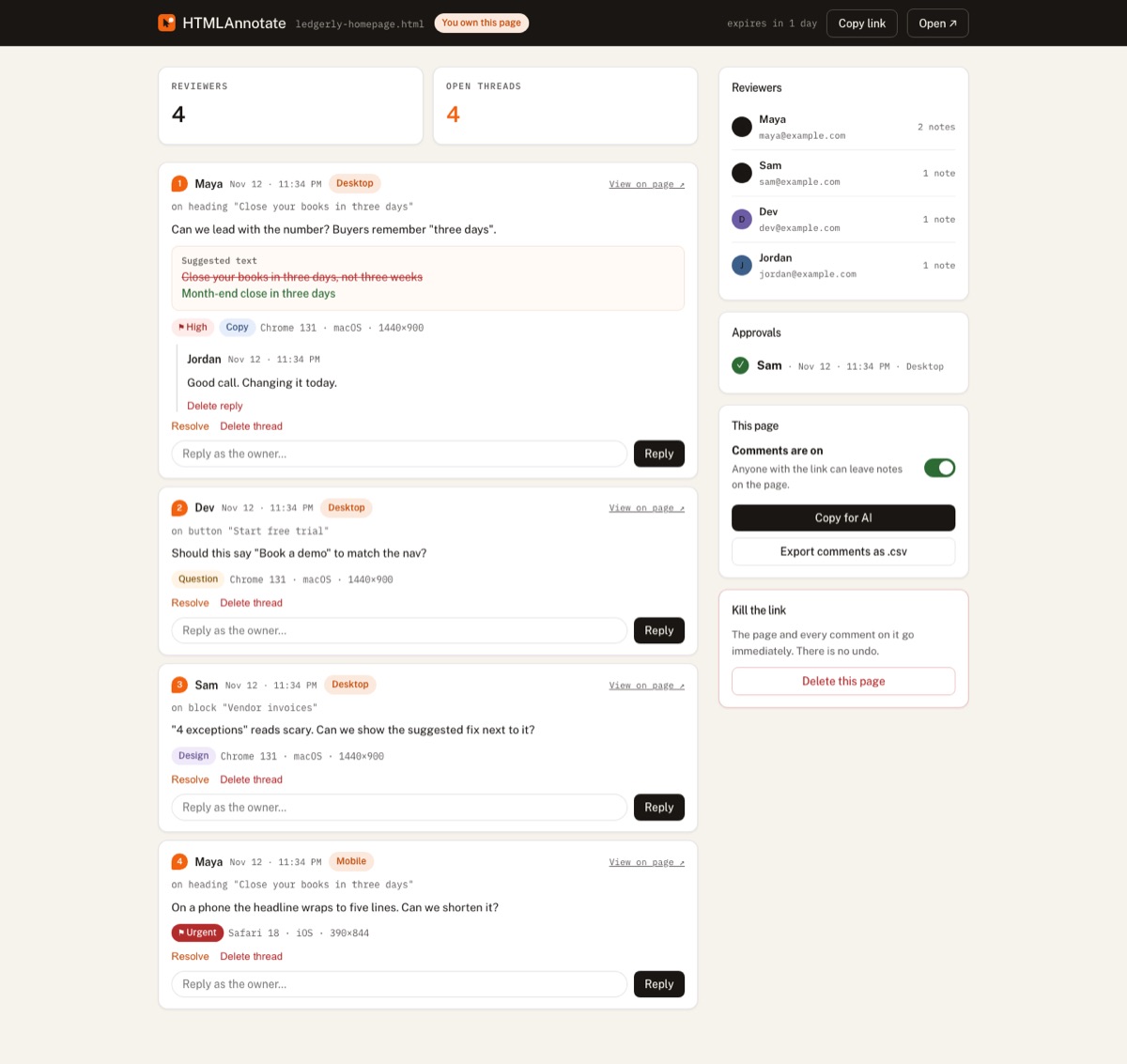
- Press Copy for AI on the manage page. It turns every open comment into a structured brief: which element, which page, which screen size, what the reviewer said, and any suggested wording.
- Paste the brief into your AI tool with a short instruction (see below) and ask for the updated file.
- Upload the new version and repeat until the comments are resolved and reviewers press Approve.
Prompts that work with the brief
The brief already contains the detail. Your prompt only needs to set the rules.
Prompt template
Here is reviewer feedback on the page you wrote.
Apply every change. Keep everything else the same.
Where a comment includes "Change the text from / To",
use the new wording exactly. Fix phone layout issues
without changing the desktop design.
Return the complete updated HTML file.

{paste the Copy for AI brief here}
If the AI misses something, comment on it again in the next round. Because each comment is tied to an element, it is easy to see what changed and what did not.
What to check in an AI-written page
- Every claim, number and customer name is true and allowed.
- The headline says what you do and who it is for, in your words.
- Buttons go somewhere real and say what happens next.
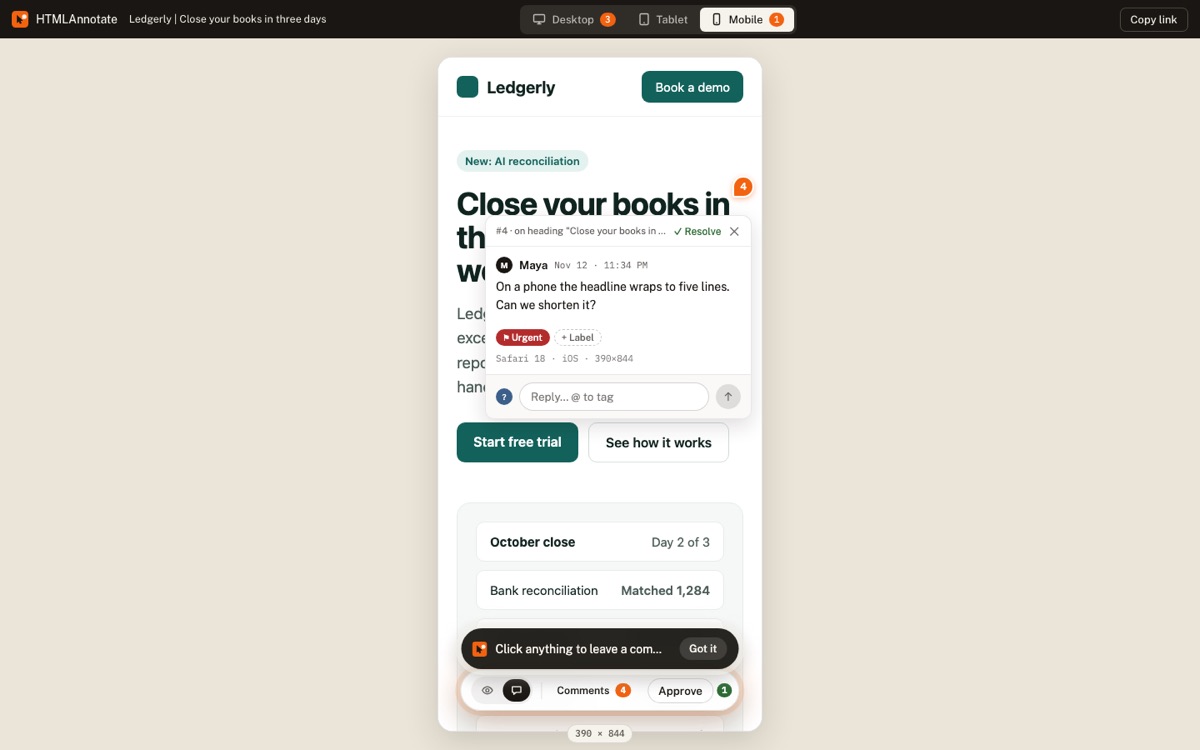
- The page works on a phone: check the Mobile view.
- Images have meaningful alt text; text has enough contrast.
- Nothing is copied from another company's site.
- Legal basics are present where needed: privacy link, terms, cookie notice.
Reviewing with a team
When several people review the same AI draft, structure helps:
- Assign areas: one person checks claims and copy, one checks design and phone layout, one checks links and forms.
- Use labels (Copy, Design, Bug) so the brief groups naturally.
- Tag the right person with @ when a decision is needed. They get an email.
- Resolve comments once the AI has fixed them, so the next brief only contains what is still open.
A worked example
A founder asks Claude for a landing page for a new scheduling app. Claude returns a complete HTML file in under a minute. It looks good on a laptop. The founder uploads it and shares the link with a cofounder and a designer friend.
- The cofounder comments on the headline: the AI wrote "Revolutionize your calendar", and she suggests a text edit to "Book meetings without the back and forth".
- The designer, in Mobile view, notes that the pricing cards overflow the screen and the main button sits below the fold.
- Both flag a testimonial the AI invented, from a company that does not exist.
The founder presses Copy for AI, pastes the brief into Claude with the prompt above, and gets a new file back. The headline now uses the exact suggested wording, the fake testimonial is gone, and the pricing cards stack on phones. One more round for small copy fixes, and both reviewers approve.
Keeping your brand voice
AI tools drift toward a generic marketing voice. Two habits keep pages sounding like you:
- Give the AI examples. Paste a paragraph you wrote yourself and say "match this tone" before asking for revisions.
- Use suggested text edits for anything that matters. The AI will use your exact words instead of paraphrasing a comment like "make it friendlier".
- Ban phrases. Tell the AI which words you never use. Common ones to ban: "revolutionize", "seamless", "unlock", "game-changing".
Keep versions straight
Each upload creates a new review link, which works as a simple version history. Name files clearly (landing-v1.html, landing-v2.html) so the links in My projects make sense. On paid plans, links never expire, so you can always look back at an earlier round.
Privacy and confidential drafts
Unreleased pages often contain plans you do not want public. Review links on HTMLAnnotate are private: only people with the link can open them, they are never listed on search engines, and free links delete themselves after 14 days. Paid plans let you keep pages as long as you need, and you can delete a page and every comment on it at any time from its manage page.
Common mistakes
- Reviewing inside the chat. Screenshots and descriptions lose the exact element and screen size.
- Fixing by hand, then asking the AI for more changes. The AI overwrites your manual edits. Either make all changes through the AI, or take the file over completely once it is close.
- Skipping the phone check. AI-written pages break on small screens more often than anything else.
- Trusting facts. Check every number, quote and logo before anything goes live.
Questions
What file size can I upload?
One self-contained HTML file, up to 1 MB on Free or 10 MB on Pro and Team.
Does Copy for AI work with Cursor?
Yes. The brief is plain text with the element, page and comment for each note, so any AI tool can use it.
Is my AI-generated page public?
No. Only people with the review link can open it, and review links are never indexed by search engines.
Can reviewers see each other's comments?
Yes. Everyone with the link sees the comments, so the team can discuss them in one place.
Can I keep the page after the review?
On Pro and Team, links never expire. On Free, they last up to 14 days.
Try it on a real page. Free, and your reviewers never need an account.
Import a page