How to collect feedback on Webflow and Framer sites
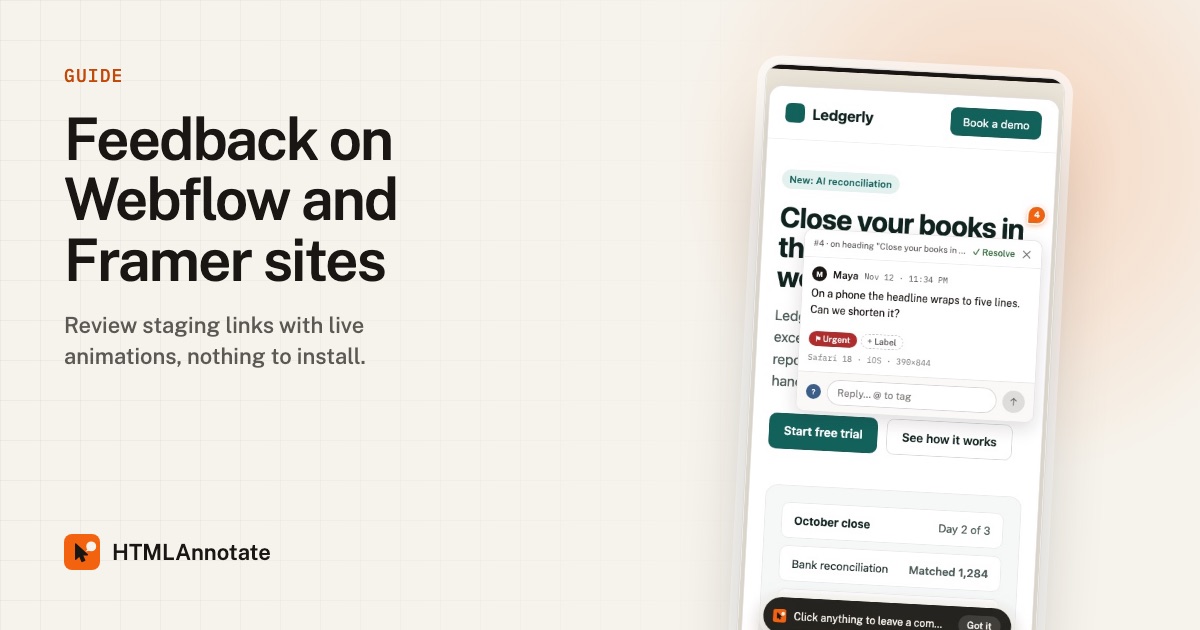
Webflow and Framer make building fast. Reviewing is still slow, because clients send feedback the way they always have. This guide shows how to collect clear feedback on a site builder project, from first staging link to launch.
Updated 12 November 2026 · by the HTMLAnnotate team
Share the right link
Every site builder gives you a public preview address before you connect the real domain:
- Webflow: your project's
.webflow.iostaging address. - Framer: your project's
.framer.websiteor.framer.appaddress. - WordPress: your staging site or the live page.
- Shopify: the online store address. Password-protected preview stores cannot be imported yet.
The address must open without a password or login. If your staging site is password protected, publish a copy without the password for the review, or share the live page after launch.
Collect feedback step by step
- Publish to staging so the latest version is live at the preview address.
- Paste the address into HTMLAnnotate. You get a review link. Nothing is added to your Webflow or Framer project.
- Send the link to your client. They need no account and no extension.
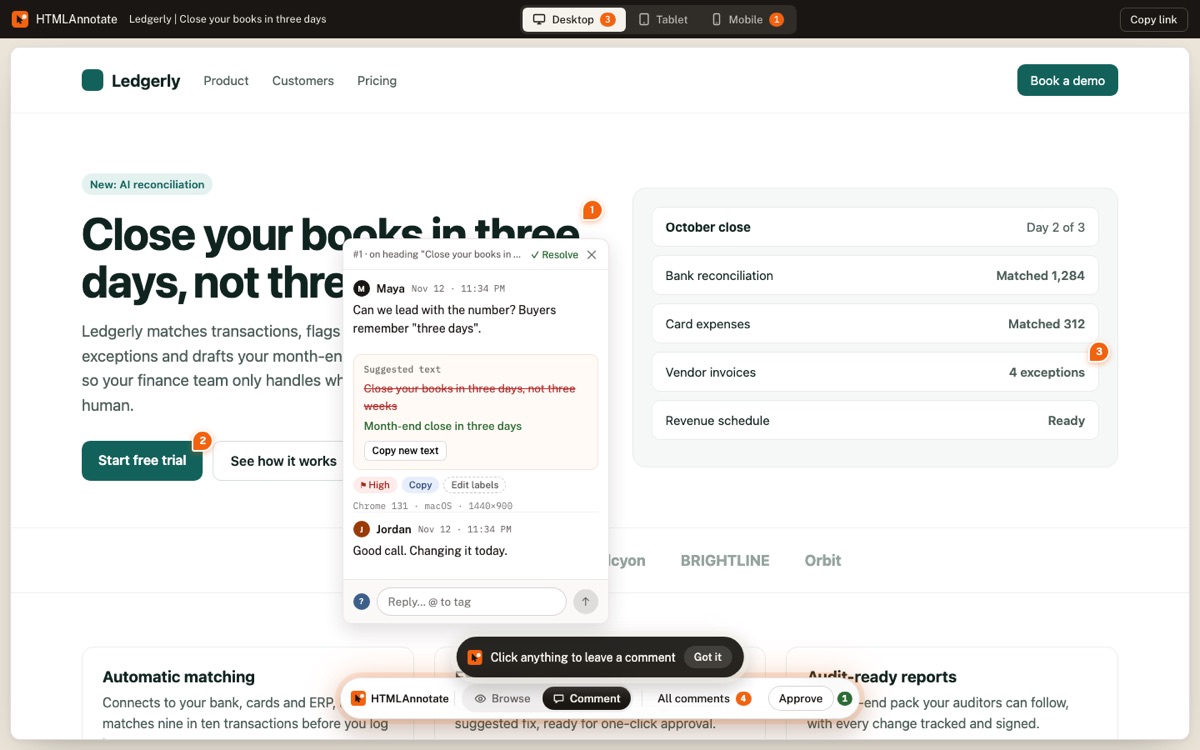
- Clients review the real site. Browse mode lets them use menus and click through pages; Comment mode makes a click start a note.
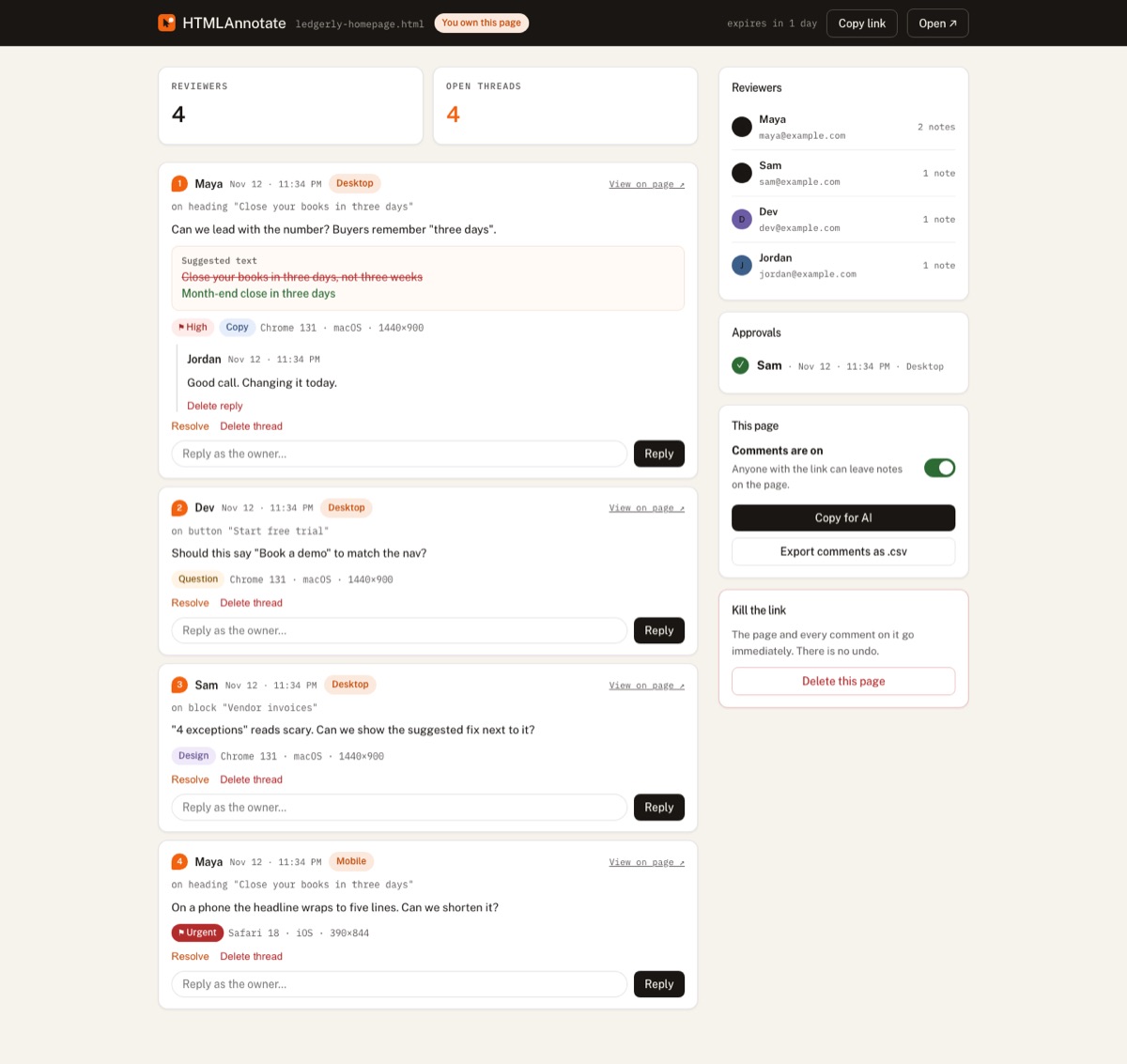
- Work through comments in the manage page, make changes in Webflow or Framer, publish to staging again, and press Reload on the review link to see the update.
Interactions, animations and forms
Site builder projects are full of motion: scroll animations, hover effects, sliders, dropdown menus. Static screenshots cannot show any of it. HTMLAnnotate runs the imported site live with its own scripts, so reviewers see and comment on the real interactions.
Forms on the review copy are switched off, so a client testing your contact form does not send real submissions to you or your client's inbox.
Multi-page sites
Reviewers can move around an imported site, and each page keeps its own comments. A note on the pricing page stays on the pricing page. The manage page shows which page every comment was left on.
WordPress, Shopify and other builders
The same process works for any site a browser can open without signing in: WordPress, Squarespace, Wix, Shopify storefronts, Ghost, hand-coded sites and pages built with AI tools. If you can open it in a private browser window without logging in, you can review it.
Pre-launch checklist
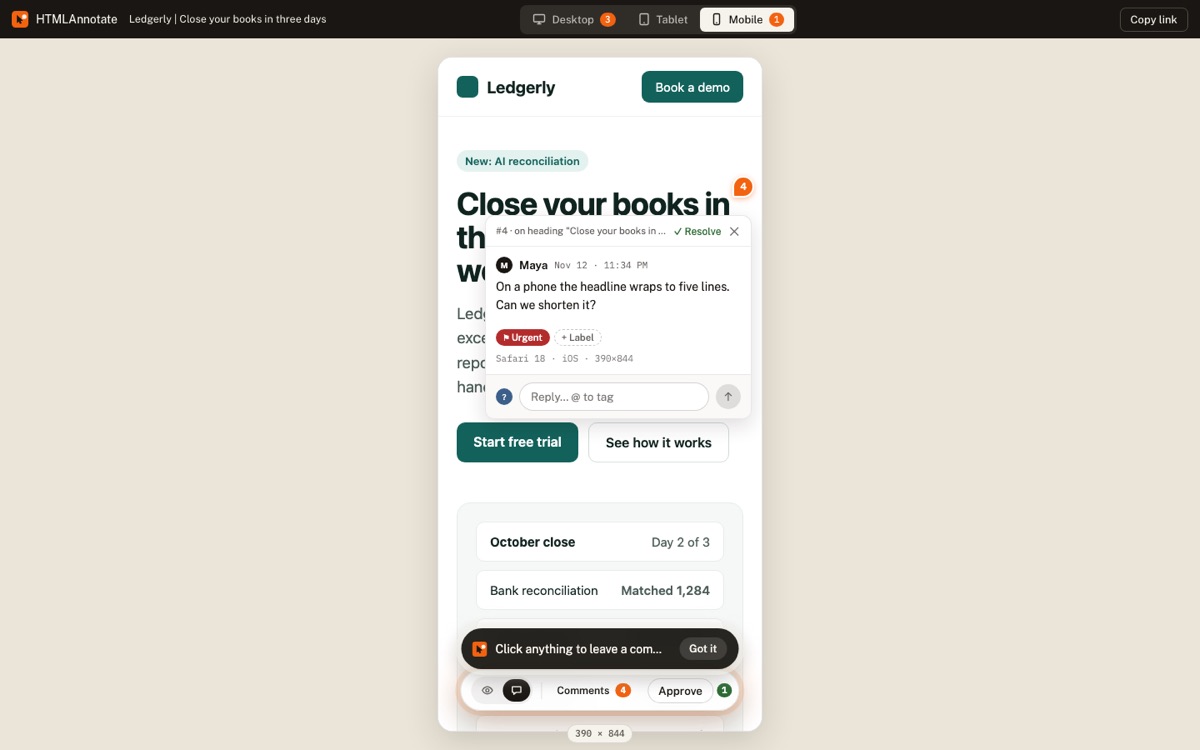
- Every page reviewed in Desktop, Tablet and Mobile view.
- All navigation links and buttons go to the right place.
- Forms tested on the real site (they are switched off on the review copy).
- Page titles and meta descriptions set for SEO.
- Images compressed and alt text written.
- Favicon and social sharing image set.
- Cookie notice and privacy policy linked where needed.
- Client has pressed Approve on the final version.
Prepare your staging site
- Replace dummy text and stock images that you do not want comments on, or tell reviewers to ignore them.
- Make sure every page you want reviewed is published and linked from the navigation.
- Turn off any password protection on the staging site for the review period.
- Check that cookie banners or popups do not cover the page. Reviewers can close them, but it is one more step.
Guiding non-technical clients
Many clients have never used a review tool. A short note in your email removes most confusion:
Client instructions
How to leave feedback:
1. Open the link. You will see the site with a small bar at the bottom.
2. Click "Comment", then click the part of the page you want to
   talk about. Type your note.
3. Use "Browse" to move around the site or open menus.
4. Switch to "Mobile" at the top to see the phone version.
5. When you are happy, press "Approve".
Working through feedback in Webflow and Framer
- Open the manage page and sort by label or priority.
- Make the change in Webflow Designer or the Framer editor. Use the element description in each comment (for example "heading" and its text) to find it quickly.
- Publish to staging.
- Press Reload on the review link, check the change, and resolve the comment.
- For copy changes with suggested text edits, use "Copy new text" and paste it straight into the builder.
A typical review timeline
For a five-page marketing site, a rhythm that works for many freelancers: share the homepage first, because it sets the direction for everything else. Once its structure is agreed, share the full site for a second round on all pages. Finish with a final round on phones and tablets, plus links and forms. Three review links in total, one per round, each with a deadline.
Hand changes to an AI or a developer
If someone else makes the changes, or you use an AI assistant to write custom code for your Webflow or Framer project, use Copy for AI on the manage page. It lists every open comment with the page, the element and any suggested wording. Paste it into ChatGPT, Claude or Cursor, or send it to your developer. Export to CSV if you track work in a spreadsheet or project tool.
Working as a team
If you build sites with a partner or a small team, create a team on the Team page (Pro or Team plan) and share each client project with it. Everyone sees the same comments, can reply and resolve, and gets an email when someone tags them with @.
Common mistakes
- Sharing the builder's editor link. Clients should review the published staging site, not the editor.
- Forgetting to republish. Changes in the builder do not show until you publish to staging.
- Testing forms on the review copy. Forms are switched off there by design; test them on the real site.
- Reviewing only on desktop. Site builder layouts often need separate tweaks for tablet and phone breakpoints.
Questions
Does it work with WordPress and Shopify?
Yes, any page that opens in a browser without a sign-in.
Will clients see my site exactly as published?
Yes. The page runs live with its own scripts, animations and menus.
Do I need to add a script to Webflow or Framer?
No. Nothing is installed on your site.
What if I update the site after sharing the link?
Publish your changes, then press Reload on the review link. The page is fetched fresh.
Can I review a password-protected staging site?
Not yet. Share a version without the password for the review.
Try it on a real page. Free, and your reviewers never need an account.
Import a page