How to annotate a web page online, without an extension
You want to annotate a web page: put notes on the actual page and get other people to add theirs. There are three ways to do it. You can install an annotation extension, you can send a review link that opens the page with comments switched on, or you can take a screenshot and draw on it. Each one suits a different job, and this guide shows all three, with the prices we checked on each product's own site on 16 November 2026.
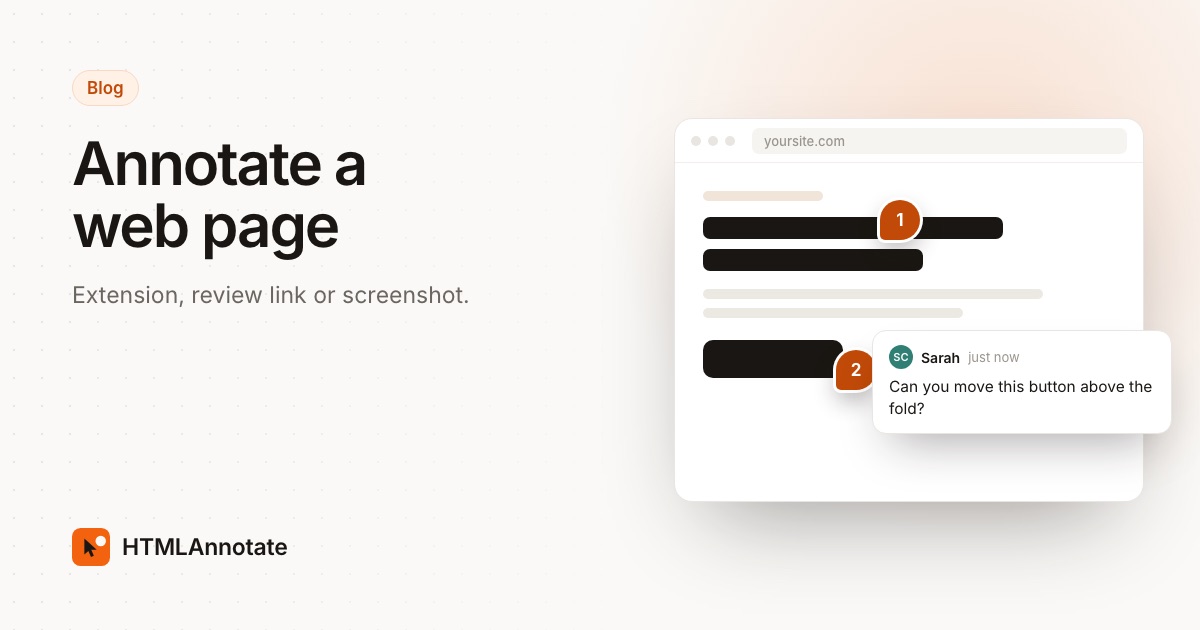
Three ways to annotate a web page
Most people who search for this want the same thing: mark up a live page and show the marks to someone else. How you do it depends on who needs to see the notes, and what they are willing to do to see them.
- A browser extension adds a notes layer to pages you visit. You install it once and annotate anything you open. Anyone who wants to read or reply installs it too.
- A review link opens the page through a feedback tool, with commenting built in. You paste the page address and send the link. Reviewers open it like any website.
- A screenshot tool captures the page as an image you draw on. It's quick, but the result is a picture of the page, and nobody can click through it.
The rest of this guide takes each one in turn, then compares a few real options side by side.
Annotating with a browser extension
The best known option here is Hypothesis, a free annotation tool used heavily in universities. Hypothesis describes getting started like this: make a free account, add the extension from the Chrome Web Store (it also runs in Chromium browsers such as Edge, Brave and Vivaldi), or drag a bookmarklet to your bookmarks bar in Firefox or Safari. Then select text on any page and write your note in the panel that opens on the right.
Notes can go in the public layer that every Hypothesis user can see, or in a private group. A private group gets an invite link, and people who join while signed in can see and reply to the group's notes. That makes it good for a reading group, a class, or your own research notes on articles you come back to.
Extensions have one real advantage: they run inside your own browser. That means they work on pages where you are signed in, such as a web app dashboard, as long as your notes are only for people who can see that page too.
The drawback shows up when you need feedback from someone outside your group. A client or manager has to install something and create an account before they can leave a single note. Work laptops often block extensions, and many people won't bother for a five minute review. Hypothesis is also built around text highlights, so it has no screen size views and no way to mark a note as fixed.
Hypothesis does offer a no-install route called Via, which opens a page through its proxy with annotation switched on. Its help page says Via only works on publicly reachable pages and on sites Hypothesis has approved, so check that your page loads there before you rely on it.
Annotating with a review link
A review link moves the setup from your reviewers to you. You give a feedback tool the page address, it loads a copy with comments on top, and you get a link to send. The reviewer opens the link, clicks on the part of the page they mean, and types. Every note stays pinned to the spot it is about, and you read them all in one list.
This is the route to use when the people annotating are clients, stakeholders or anyone who isn't going to install software for you. It's also how most website feedback tools work, including ours. For more on what reviewers do or don't have to sign up for, see feedback tools that need no sign-up.
The limit is access. The tool fetches the page the way a logged-out visitor would, so it has to be reachable from the internet. Public sites, preview links from Webflow or Framer, and staging addresses all work. Pages behind an app login usually don't.
How to annotate a web page with a review link, step by step
These steps use HTMLAnnotate, which is our own tool. Other review link tools follow a similar pattern, and you can try the whole thing first on a sample site in the live demo, with no sign-up.
- Copy the address of the page you want annotated. It can be a live site or a staging link. If the staging site asks for a browser username and password, you enter them once and they stay hidden from reviewers.
- Open htmlannotate.com/new and paste the address. You can also upload a single HTML file or a PDF here if the page isn't online yet.
- Copy the review link it gives you. The page runs live, with its own scripts, so menus, sliders and animations behave as they do on the real site.
- Send the link with a line about what you want checked, for example "Please look at the pricing section and the phone layout. Colours aren't final." A short brief gets sharper notes than "thoughts?".
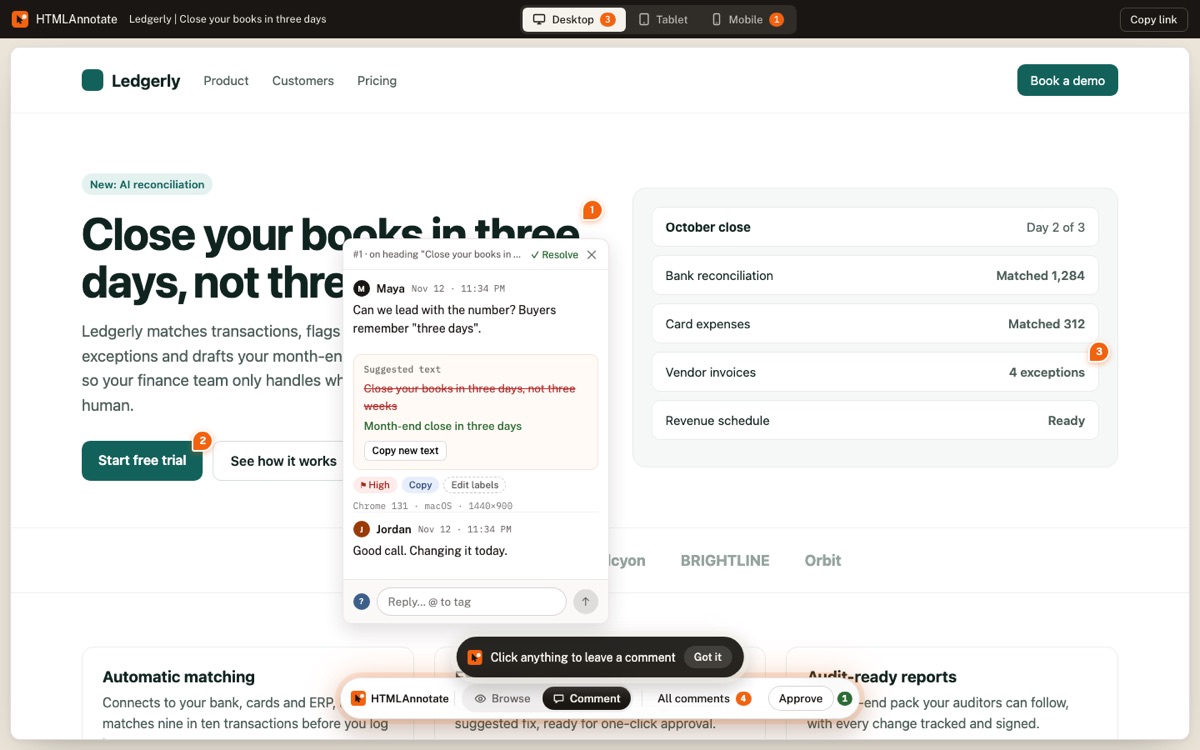
- Your reviewer opens the link, enters a name and email once, switches to Comment, and clicks any heading, button or image to leave a note. They can switch between Desktop, Tablet and Mobile at the top, and each view keeps its own pins.
- Read the notes on your manage page. Each comment shows where it was left, the browser and screen size, and a screenshot of what the reviewer saw. Reply, label, assign or resolve each one, or press Copy for AI to paste the open comments into ChatGPT, Claude or Cursor.
- When you've made the changes, load the latest version on the same link. Your reviewer gets a clean page to check, and can press Approve when it's right.
On the Free plan a link lasts up to 14 days when you're signed in, or 1 day without an account. Pro and Team links don't expire. If the people annotating are new to giving feedback, how to give good website feedback is a short page you can send along with the link.
When a screenshot is the better pick
Sometimes you don't need a review at all. You want to circle one thing and send it in a chat. A screenshot with an arrow on it does that in seconds, and the person on the other end needs nothing but their eyes.
If you use Microsoft Edge, there is a tool built in. Microsoft's guide says Ctrl+Shift+S, or the Screenshot item in the browser menu, lets you capture an area or the full page, including the parts you would need to scroll to, and draw on it before you copy or save. Chrome has nothing equivalent built in, so Chrome users add a screenshot extension.
Markup Hero is one example. Its Chrome extension captures a whole webpage, slicing long pages automatically, and you annotate the image with arrows, boxes and text. Its pricing page lists a free plan with 25 markups.
Screenshots work well for a one-off note, for pages behind a login you can't share, and for recording how something looked at a moment in time. They work badly for a full review. Several people sending screenshots means notes scattered across email and chat, nobody can see each other's comments, and an image can't show what happens on hover or on a phone.
A few real options compared
| Tool | How it works | Annotators need | Free option | Paid from |
|---|---|---|---|---|
| HTMLAnnotate | Review link to the live page | Name and email once, no account | 1 project, unlimited pages and comments | Pro $15 a month, or $12 a month billed yearly |
| Pastel | Review link to the live page | No account | 1 user, 1 active canvas | Pro $35 a month, or $29 a month billed yearly |
| Hypothesis | Browser extension or bookmarklet | A free account and the extension | Free for personal use and collaboration | Education and enterprise plans by quote |
| Markup Hero | Screenshot, marked up as an image | A link or file to view the image | 25 markups | Premium $10 a month, or $3 a month on the annual plan |
| Microsoft Edge Screenshot | Built-in screenshot with drawing | Whatever you send the image through | Free in Edge | No paid plan |
Prices and limits checked on each product's own website on 16 November 2026. Plans change, so check before you buy. For a wider list of free plans, see free website annotation tools compared.
A word on each. Pastel has the richest free plan of the link tools on features, with approvals and deadlines, but only one active canvas at a time, and it also handles images, PDFs and video. Hypothesis is the right home for anyone annotating articles, papers and readings, especially with a class. Markup Hero is quick and cheap for screenshots you want to keep organised. Edge's tool costs nothing if you already use Edge.
Which way should you annotate?
Start with who will read the notes.
- Just you, on articles and pages you research: an extension such as Hypothesis.
- A class or reading group that can all install the same thing: Hypothesis with a private group.
- A client, manager or stakeholder giving feedback on a website: a review link, so they open it and click with nothing to install.
- One quick note on a page behind a login, or a record of how it looked today: a marked-up screenshot.
If you're reviewing a site with a client, you can paste the address into HTMLAnnotate and send the link in under a minute. The Free plan needs no card, and Pro adds links that never expire and room for a second person.
Questions
Can I annotate a web page without installing anything?
Yes. Review link tools such as HTMLAnnotate and Pastel open a public page from its address, so you and your reviewers comment in the browser with nothing installed. Hypothesis also has a no-install route called Via, but it only works on websites Hypothesis has approved, and annotators sign in.
What is the best free way to annotate a web page?
It depends on who is annotating. For your own research notes or a class reading, Hypothesis is free with no limits listed. For getting feedback from a client, HTMLAnnotate's free plan covers 1 project with unlimited pages and comments, and reviewers need no account. For one quick note, the screenshot tool built into Microsoft Edge lets you capture a whole page and draw on it for free.
Does Chrome have a built-in way to annotate web pages?
Chrome does not have its own annotation tool, so people add an extension from the Chrome Web Store, such as Hypothesis or a screenshot extension. Microsoft Edge has a built-in Screenshot tool (Ctrl+Shift+S) that can capture a full page and let you draw on it.
Do reviewers need an account to annotate?
With Hypothesis, yes: every annotator signs up for a free account. With HTMLAnnotate, reviewers give a name and email once per browser and never make an account. Pastel also lets guests comment without an account.
Can I annotate a page that needs a login?
Usually not with a review link, because the tool has to open the page the way a logged-out visitor would. HTMLAnnotate can't import pages behind a password box or a sign-in screen, so use a preview or staging link that opens without a password. For pages behind an app login, an extension that runs in your own signed-in browser, or a screenshot, works better.
Will annotating change the real website?
No. Extensions draw their notes in your browser, and review link tools show a copy of the page with comments on top. HTMLAnnotate needs no script on your site, and forms on the review copy don't submit.
Paste a page address, get a review link, and let reviewers click anything to comment. Free for 1 project, nothing to install.
Start a free review