How to get client feedback on a Webflow staging site
The build is done and it's on your webflow.io address. The next week depends on how the client gives feedback. This guide walks through one clean review round, and compares the ways clients can comment.
Before you send anything
- Publish to staging only. In the Publish menu, tick just the webflow.io subdomain. The custom domain keeps showing the old site, or nothing, until the client approves.
- Turn off the site password for the round. A Webflow site password puts a sign-in form in front of every page, including webflow.io. Most review tools that load the page can't get past it, so switch it off under Site settings while the review runs.
- Click through every page yourself on a phone. Fixing obvious mobile problems first saves the client from spending their attention on them.
- Decide what this round is for. Content and structure first, visual polish later. Clients give better notes when they know what to look at.
How clients can leave feedback on a Webflow site
| Method | Client needs | Notes tied to the element | Best for |
|---|---|---|---|
| Email or chat | Nothing | No | One or two small changes |
| Screenshots or a screen recording | A tool to capture | Roughly | Showing a bug in motion |
| Webflow comment-only link | A link, opens in Webflow's preview | Yes | Teammates and collaborators |
| A review link on the published site | A link, opens in their browser | Yes, with the view and page | Clients and stakeholders |
Webflow's own comments are a good fit for people who already work in Webflow. Clients often find it easier to comment on the site exactly as visitors will see it, with interactions running, in their usual browser.
Step 1: create the review link
Paste the webflow.io address into HTMLAnnotate. You get a review link for the client and a private manage link for you. Every page of the site can be reached from the review link, and each page keeps its own comments. Sign in first if the round will take more than a day: links made without an account last 1 day, and up to 14 days on a free account.
Step 2: brief the client in three lines
A short brief gets sharper notes. Something like:
- "Here is the new site on our staging address. Click around normally first."
- "Switch to Comment and click anything to leave a note. Please check the Mobile view too."
- "This round is about the words and the page order. Colours and images come next week."
Step 3: collect and sort the notes
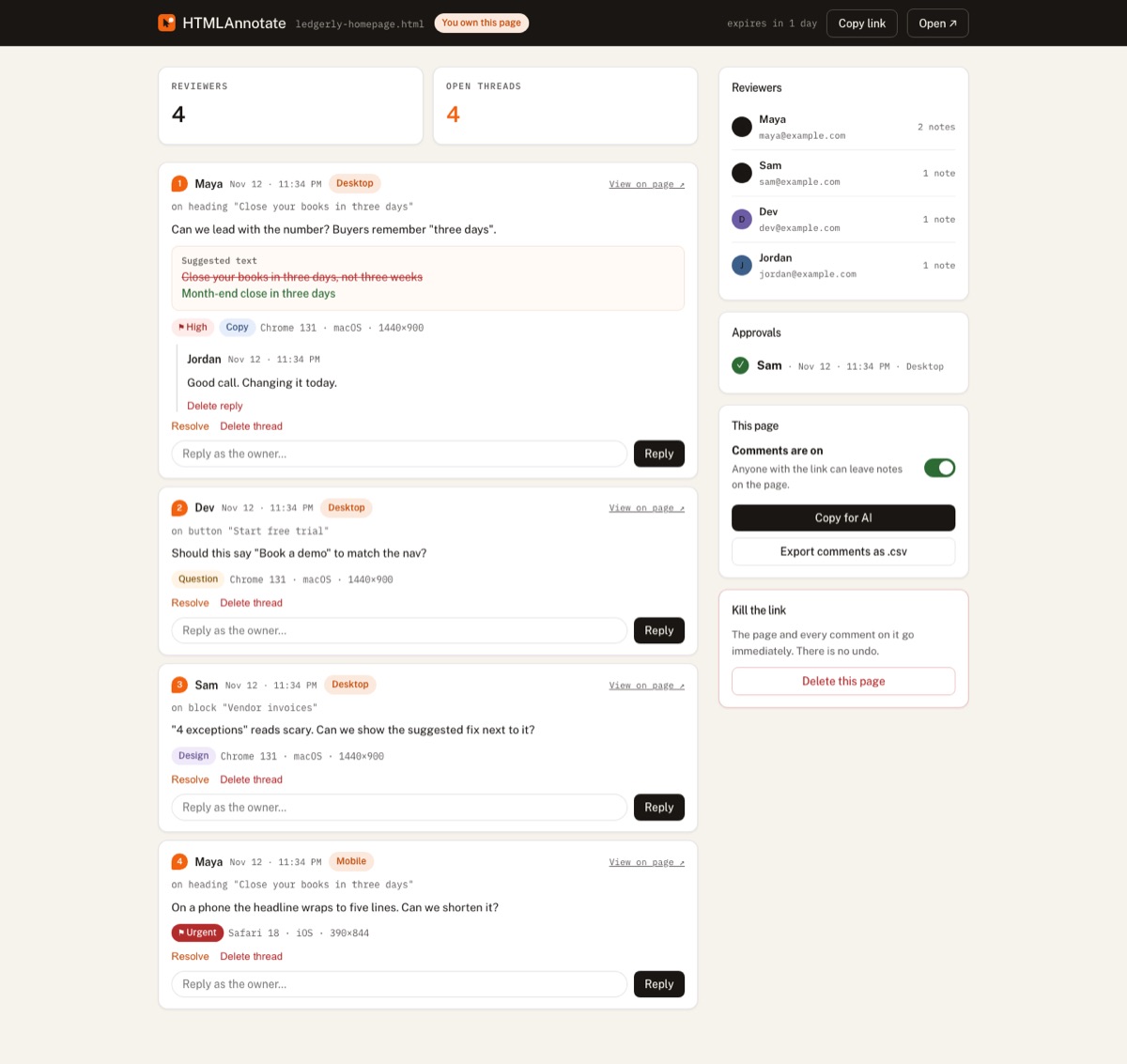
As comments arrive, label each as Copy, Design, Bug, Question or Idea, and set a priority. Reply in the thread when a note is unclear instead of guessing. When a client types new wording as a suggested text change, open it to see the words in place on the page before you accept it.
Step 4: match comments to Webflow breakpoints
Comments stay in the view they were left in, so you know which layout to open in the Designer.
- Desktop comments: the base breakpoint.
- Tablet (820 pixels wide): Webflow's Tablet breakpoint, 991 pixels and below.
- Mobile (390 pixels wide): Webflow's Mobile portrait breakpoint, 478 pixels and below. Check Mobile landscape yourself.
Step 5: fix, republish, repeat
Work through the list in the Designer, or press Copy for AI to get every open comment as one brief with the element, page and view, and paste it into your AI tool to plan the changes. Republish to staging. The review loads the latest published version each time it opens, so the client sees fixes in place, and you resolve each comment as you confirm it.
Step 6: get a clear sign-off
Ask the client to press Approve when they're happy, so there is a record of who signed off and when. Then switch comments off, put the site password back if you use one, and publish to the custom domain. Run through the website launch checklist on launch day.
For more on how HTMLAnnotate works with Webflow, including what can't be reviewed, see HTMLAnnotate for Webflow.
Questions
Can clients comment on a Webflow site without a Webflow account?
Yes. Webflow's comment-only links work without an account inside Webflow's preview, and tools like HTMLAnnotate let clients comment on the published site in their own browser with just a name and email.
Should clients review staging or the live site?
Staging. Publish only to the webflow.io subdomain during the round so the live custom domain stays unchanged until the client approves.
What if my Webflow staging site has a password?
Webflow's site password shows a sign-in form, which review tools that load the page can't get past. Turn it off for the few days of review, then switch it back on.
How do I know which breakpoint a comment is about?
Use a review tool that keeps desktop, tablet and phone comments apart. In HTMLAnnotate, Tablet is 820 pixels wide, which falls under Webflow's Tablet breakpoint, and Mobile is 390 pixels, which falls under Mobile portrait.
How many review rounds should a Webflow project have?
Two to three is typical: one for content and structure, one for design and responsive layout, and a short final check before launch. Put the number in your proposal so extra rounds are a conversation, not a surprise.
Paste your webflow.io link and get a review link your client can comment on. Free, no account for reviewers.
Start a free review