How to get feedback on an HTML email before it goes out
A campaign email can't be edited once it lands in 40,000 inboxes. This guide covers HTML email review before sending: how to get the code out of Mailchimp, Klaviyo or HubSpot, put it in front of your team and client as one link they can comment on, and get a clear yes before anyone presses Send. Platform steps were checked in each tool's own help docs on 16 November 2026.
Three ways to review an email, and when each fits
There are three common ways to check an email before it sends, and they answer different questions. Most teams end up using two of them.
| Method | Answers | Works best for |
|---|---|---|
| Test email or the platform's own preview | Does it look right in my inbox? | Quick checks by you or one colleague |
| Review link with comments | Do the team and client agree on the copy, layout and offer? | Several reviewers, rounds of changes, a formal sign-off |
| Email QA service (Litmus, Email on Acid) | Does it render correctly in Gmail, Outlook, Apple Mail and the rest? | Teams sending to large lists across many email apps |
Test emails are fine for a lot of work. If you're the only person who needs to look, or the change is a single line, send a test and move on. Each platform also has its own preview, and Klaviyo now offers a shareable preview link (more on that below).
The trouble starts when four people reply to a test email with notes like "the second button" and "make the top bit shorter". Some of them are looking at the previous test. Nobody can see what anyone else said. A review link fixes this: one copy of the email, comments pinned to the exact line or image, and an approval at the end.
A review link doesn't tell you how Outlook on Windows will mangle your table layout, though. For that you need a rendering service, covered further down.
Step 1: get the email's HTML out of your platform
Every platform hides the code in a different place, and not every email can be exported. Here is what each tool's own help centre says today.
Klaviyo
Klaviyo exports from saved templates. Save your campaign email as a template if you haven't, then go to Content, then Templates, and open the Email: saved tab. Click the three-dot menu on the template's card and choose Export. A window opens with the HTML and a copy button. You need permission to edit templates to see this option.
Klaviyo also has a shareable preview link for campaign and flow emails built in its drag-and-drop editor. Reviewers don't need a Klaviyo login, but they must enter one of up to 10 email addresses you add, and those addresses have to be on your list. The link expires 7 days after you create it. If all your reviewers are already on your list, that may be all you need.
Mailchimp
Mailchimp's export works for custom-coded templates only. Its help article says drag-and-drop templates can't be exported. For a coded template, go to Campaigns, then Email templates, select the template, open More options and choose Export as template, which downloads the HTML file. You can also open Edit Template and copy everything from the code editor.
If the email was built with drag and drop, the documented ways to share it are preview mode (desktop and mobile), the link checker, and test emails, which can go to several addresses at once and can include a note for reviewers. On the Standard plan and above, Inbox Preview shows the email in different email apps.
HubSpot
HubSpot's knowledge base documents getting the HTML of a sent email: go to Marketing, then Email, open the sent email, hover over the preview and click View email. In the web version that opens, right-click, choose View Page Source, and copy the code. For drafts, the documented route is the Preview and test menu in the editor, where you can send a test email or, on Marketing Hub Professional and Enterprise, preview the email in specific email clients.
A practical approach for recurring campaigns: once one send has gone out, copy its HTML, and use that as the starting point for reviewing the next version.
Hand-coded emails
If you or a developer write the email by hand, or with a framework like MJML that outputs HTML, you already have the file. Use the final compiled HTML, the version you'd paste into your sending platform, so reviewers see what readers will get.
Step 2: check the code before you share it
Before you send a link to the client, take two minutes to look at the email yourself. Paste the HTML into the free HTML email preview. It draws the email at about 640 pixels for desktop and 375 for a phone, can swap images for their alt text the way an image-blocking inbox does, and shows the email on a dark background. It also shows the subject line and preview text if they're written into the code. Everything stays in your browser.
Look for three things. Images should load from full web addresses; exported HTML from these platforms usually points at the platform's own image hosting, which works anywhere. The file shouldn't be huge: images embedded in the code are the usual reason, and HTMLAnnotate takes up to 1 MB on Free and 10 MB on Pro and Team. And merge tags will appear as raw tags such as *|FNAME|*, which is fine, as long as reviewers know why.
Step 3: turn the email into a review link
From the email preview, press Get a review link and the code carries over. Or go to htmlannotate.com/new, choose "Or paste HTML code, such as an email from Mailchimp, Klaviyo or HubSpot", and paste the whole thing from <html> to </html>. If you have a file, drop it in instead.
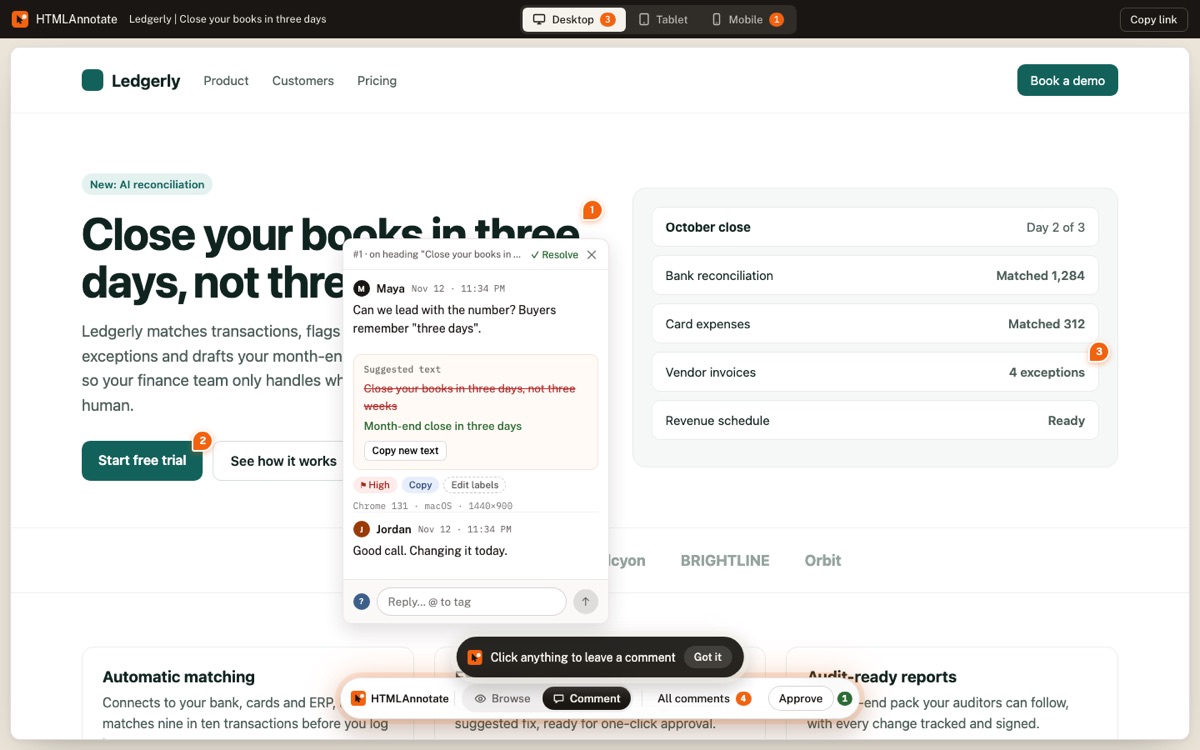
You get a review link to send, and a private manage link for you. HTMLAnnotate draws the email from your HTML in a browser frame. Reviewers can switch between Desktop, Tablet and Mobile views, and comments stay with the view they were left in, so a note about the phone layout doesn't get mixed up with one about desktop. The Mobile view uses a standard 390 by 844 phone frame, and you can pick exact device sizes such as iPhone SE or Pixel 8.
Send the link with a short brief. Say what stage the email is at and what you want checked: "Copy and offer are final for approval. Please check the phone view and the discount wording. Images are placeholders in the second block." Our feedback request email templates have more wording you can borrow.
Step 4: collect comments on the email itself
Reviewers open the link, give their name and email once, and click the headline, image or button they mean. There's no account to create and nothing to install. They can reply to each other, suggest new wording for a piece of text, which shows in place on the email, and mention a teammate by email.
On your manage link, every comment arrives with where it was left, the view and browser it came from, and a screenshot of what the reviewer saw. Mark comments resolved as you make the changes in your email platform. If someone on the team uses an AI tool to edit the HTML, Copy for AI turns the open comments into one brief, and the MCP server lets Claude, ChatGPT or Cursor read the comments directly.
When the changes are done, upload the new HTML as a new version on the same link. Reviewers see a clean copy, and the earlier version keeps its comments for reference.
Step 5: get an approval before you send
Decide up front who has to approve. For agency work that's usually one named person on the client side, plus your own account lead. Ask them to press Approve on the review link once the email is right; you'll see who approved and how many. Then send the final test to yourself from the platform, because that's the version that actually goes out.
One rule saves a lot of trouble: after approval, any change, even a fixed typo, goes back on the link as a new version. The approved copy and the sent copy should match. For a fuller sign-off process, the client approval guide covers who signs off and how to record it.
A pre-send review checklist
Work through this list on the review link and in a final test send. Some items can only be checked in a real inbox, and those are marked.
- Subject line and preview text. Read them together, the way an inbox shows them. Check the preview text isn't picking up "View in browser" or alt text from the first image.
- Links. Click every one in a test send. Check that the UTM tags are on each link, spelled consistently, and match the campaign name in your analytics. Link checkers in the platforms skip some links, such as ones with merge tags.
- Images and alt text. Every image needs alt text that makes sense on its own. Turn images off in the email preview: the main message and the button should still work.
- Phone view. Body text big enough to read without zooming, one column, and buttons large enough to tap. Most reviewers only look at desktop unless you ask.
- Dark mode. Gmail, Outlook and Apple Mail each change colours differently in dark mode. The email preview shows how the email sits on a dark background; to see what each app does to your colours, test in real inboxes or a QA service.
- Unsubscribe and footer. The unsubscribe link must work, and the footer needs your postal address and, ideally, a line saying why the reader is getting the email. Some platforms show these links as placeholders in tests, so check them in a live test where possible.
- Personalisation fallbacks. For every merge tag, decide what readers see when the field is empty. "Hi ," is the classic mistake. Preview the email as a profile with no first name.
- Offer details. Prices, discount codes, dates and time zones, checked against the brief. These are the errors clients notice first.
For website launches, the same idea applies with a different list; see the website launch checklist.
When you need an email testing service
HTMLAnnotate is a feedback tool. It shows your HTML in a browser at three widths and collects comments and approvals. It doesn't open your email in Outlook, Gmail or Apple Mail, and it can't tell you that a background image disappears in one version of Outlook.
If you send to large lists, use complex layouts, or have had rendering complaints, a dedicated email QA service is the better tool for that job. Email on Acid, which is moving to the name Mailgun Inspect, lists a Basic plan at $99 a month with 1,000 email previews and a Premium plan at $199 a month with 2,000, both with unlimited users, over 100 email clients and devices, and a free trial. Litmus is now part of Validity Engage, and its site sends you to a demo and sales conversation with no public price. Some sending platforms include a version of this too: Mailchimp's Inbox Preview on Standard and above, and HubSpot's email client previews on Marketing Hub Professional and Enterprise.
Prices checked 16 November 2026 on emailonacid.com and litmus.com.
Many teams use both kinds of tool: a QA service for rendering, and a review link so the client can comment on wording and layout without logging into anything. If you want to see what reviewers experience first, open the live demo; plans and limits are on the pricing page.
Questions
Can I just send a test email to my client?
Yes, and for one reviewer and a small change it's often enough. It gets harder with several people: comments come back as separate replies, some refer to an older test, and you match each note to the email yourself. A shared review link keeps every comment on the same copy.
How do I get the HTML out of Klaviyo?
Save the email as a template, then go to Content, Templates, the Email: saved tab, open the three-dot menu on the template and choose Export. Copy the HTML from the window that opens. Klaviyo says you need permission to edit templates to do this.
Can I export the HTML of a Mailchimp drag-and-drop email?
Mailchimp's help says drag-and-drop templates can't be exported; export works for custom-coded templates. For a drag-and-drop email, use Mailchimp's preview and test emails, or Inbox Preview on Standard and above.
Does a review link show how my email looks in Outlook or Gmail?
No. HTMLAnnotate draws the email's HTML in a normal browser at desktop, tablet and phone widths. Email apps change HTML in their own ways, so for rendering in specific inboxes use a service such as Litmus or Email on Acid, or send tests to the inboxes your readers use.
Will merge tags like first name show up?
In exported HTML, merge tags usually appear as the raw tag, for example *|FNAME|* in Mailchimp. That is useful in review: it reminds everyone to check what readers see when the field is empty.
How do I record that the client approved the email?
On an HTMLAnnotate review link, reviewers press Approve when the email is right, and you see who approved and how many. Keep that link with the campaign so the sign-off is easy to find later.
Is there a free way to check an email at phone width?
Yes. The free HTML email preview at htmlannotate.com/tools/email-preview shows pasted email HTML at desktop and phone widths, with images off and on a dark background, all in your browser with no signup.
Paste your email's HTML and send one review link. Your client comments on the email itself, with no account.
Start a free review