How to review a PDF with a client online
Brochures, proposals, menus and pitch decks usually end up as a PDF, and the feedback usually comes back as a marked-up copy in someone's inbox. Here is how to review a PDF online with comments from your client: one link, notes pinned to the exact spot on each page, and a clear approval at the end.
Why marked-up PDFs by email get messy
The usual routine goes like this. You export the brochure, attach it to an email, and wait. The client prints it and scribbles on it, or opens it in a PDF reader and adds sticky notes, or replies with a list that says "p2, second para, change the wording". Their colleague does the same with a copy of their own. A week later you have three files, two email threads and a voice note, and some of the comments contradict each other.
None of this is anyone's fault. A PDF is easy to send and hard to discuss. Each reviewer works on their own copy, so nobody sees what the others said, and you end up as the person who merges it all. Then you send version 2 and the cycle starts again, with no clear record of which comments were dealt with.
A shared review link fixes most of that. Everyone looks at the same copy, each note sits on the exact spot it is about, and you can answer and close each one where it was left.
Step 1: export a review copy of the PDF
The file you send for review does not have to be the file you send to the printer. A lighter review copy is quicker to open and easier to share.
- Export with compressed images. HTMLAnnotate accepts PDFs up to 1 MB on the Free plan and 10 MB on Pro and Team, and a print-ready file with full-resolution photos can be far larger. Most design tools have a "smallest file size" or screen preset.
- Remove any password. A password-protected PDF won't open in the review page.
- Export pages in reading order. A folded brochure or menu is easier to judge as spreads if that is how people will see it, so pick spreads or single pages on purpose.
- Put a version number in the file name, such as
spring-menu-v1.pdf. The name becomes the title of the review page, so it should make sense to the client.
If bleed and crop marks matter for this round, leave them on and say so in your brief. If the client is only checking words and pictures, export without them so the pages look like the finished piece.
Step 2: upload it and get a review link
Go to htmlannotate.com/new, choose the upload tab and drop in the PDF. Every page is drawn in the browser, one under the other, with its page number underneath. You get two links back: a review link to send to the client, and a private manage link for you, where you read and sort the comments.
How long the link lasts depends on your plan. Without an account it lasts 1 day, which is enough for a quick check. With a free account it lasts up to 14 days, and on Pro and Team it doesn't expire, which is useful for proposals and menus you will come back to. The full list is on the pricing page.
Step 3: send the link with a short brief
The brief is where most of the quality of the feedback comes from. Tell the client what stage the document is at, what to look at, and what is already settled. For example:
- "This is the first full draft of the brochure. Please check every price, phone number and address, and tell us if any photo feels wrong. Fonts and colours are agreed."
- "Final proof before print. Please only flag errors: typos, wrong details, anything cut off at the edges. Comments by Thursday so we can send it to the printer on Friday."
Name one person on the client side who has the final say. When the owner and the marketing manager disagree about a headline, you want them to settle it between themselves before you change anything. Our feedback email templates include wording for this kind of request.
Step 4: the client clicks the page to comment
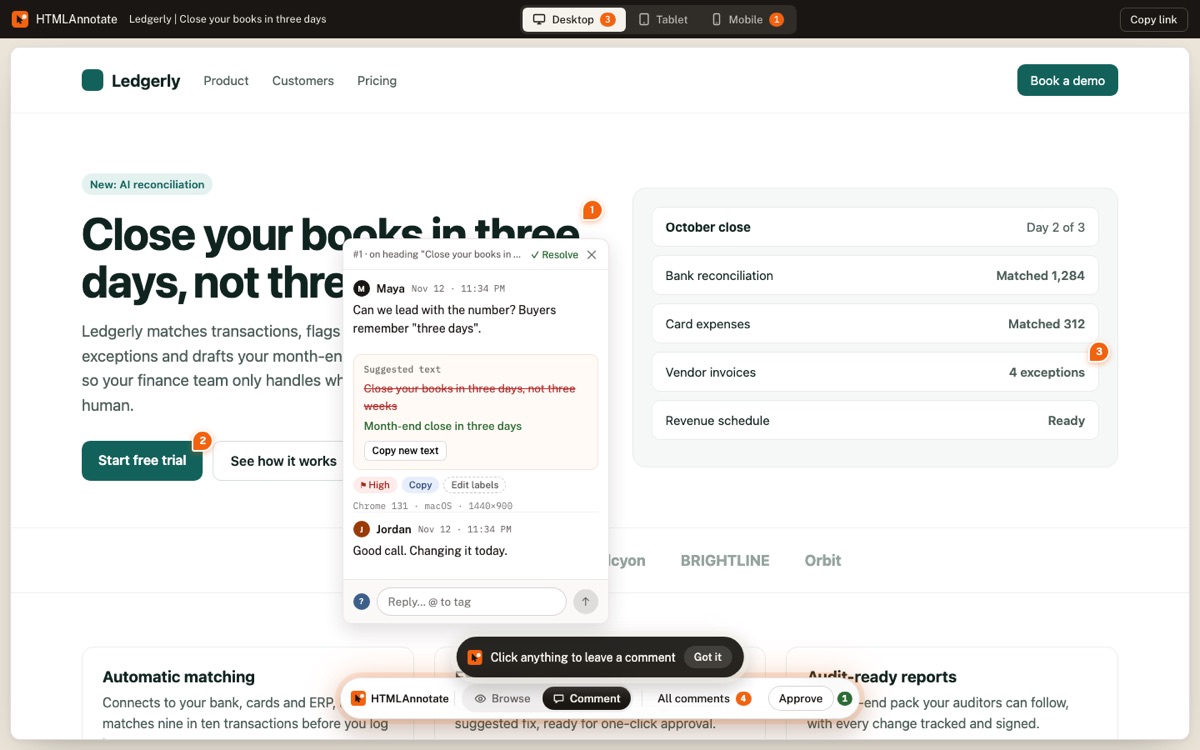
The client opens the link, enters their name and email the first time they comment, and clicks any spot on any page. The comment is pinned exactly where they clicked, so "this photo" or "this line" needs no further explanation. Each comment is labelled with the page it sits on, and a screenshot of what the reviewer was looking at is saved with it.
A PDF looks the same on every screen, so there is no separate phone or tablet view to worry about: everyone sees the same pages and the same pins. The client can review on a laptop or a phone, and anyone else with the link can add comments too, so a colleague can join in without you sending another file.
Step 5: reply, fix and resolve
Your manage link lists every comment with its page, who left it and the screenshot. Work through them in order:
- Reply when something needs an answer, for example "The printer needs 3 mm bleed, so the photo will extend past this edge. It won't be cut short."
- Fix the clear ones in your design file.
- Mark each comment resolved as you go, so the list shows what's left.
- Use labels or priority to separate must-fix errors from nice-to-have changes.
If you use an AI tool to help draft copy changes, Copy for AI turns the open comments into a brief you can paste into ChatGPT, Claude or Cursor. You can also download every comment as a CSV file for your records.
Step 6: upload the next version on the same link
When the changes are done, export the new PDF and upload it from the manage page as a new version of the same review. The client keeps the same link and sees a clean set of pages, while version 1 keeps its comments so anyone can check what was asked for. While uploading you can mark everything still open on the old version as resolved, and send an email to everyone who commented that the new version is ready.
The Free plan allows 3 versions per page, which covers a typical draft, revision and final proof. Pro and Team have no limit.
Step 7: ask for approval
The review page has an Approve this version button. When the client presses it, you get an email, and the approval is recorded against that version with their name and the time. If you upload another version afterwards, it needs its own sign-off, so an approval on the draft can never be mistaken for approval of the final proof. A reviewer can also take their approval back if they spot something late.
For a longer look at sign-off wording and what to do when approval stalls, see our guide to getting client approval. It is written for websites, but the same steps work for print.
Getting clear feedback on print and layout
Clients are good at spotting what they care about and bad at checking what they assume someone else has checked. A short checklist in your brief helps them look at the right things.
- Facts first. Ask them to read every price, date, phone number, email address, opening time and web address out loud. These are the errors that cost the most after printing.
- Names and spelling. People's names, job titles, product names and place names are where typos hide, because spellcheck doesn't know them.
- Images. Ask whether each photo is the right one, shows the right product or person, and is one they have permission to use. Point out that the review copy is compressed, so softness on screen is expected and is not what will print.
- Edges and bleed. If the piece has bleed, explain in one line that anything in the outer few millimetres will be trimmed, so they shouldn't ask for text to move into it.
- Folds and order. For a folded leaflet or menu, ask them to check the panels read in the right order once folded. A paper mock-up helps here.
- One comment per point. A pin with "change the price and also the photo" is two jobs. Ask for separate comments so each one can be resolved on its own.
If comments still come back vague, our post on turning vague client feedback into clear changes has questions you can ask in reply.
A simple approval routine for PDFs
For most brochures, proposals and menus, three rounds is enough. Agree this with the client at the start.
| Round | What the client checks | What you do |
|---|---|---|
| Version 1: first draft | Structure, wording, choice of photos | Reply to every comment, make the changes, resolve |
| Version 2: revised draft | That the changes are right, plus anything missed | Fix, resolve, flag anything new as out of scope if it is |
| Version 3: final proof | Errors only, then Approve this version | Send the approved file to print |
Keep the approved version's link with the job. If a question comes up after printing, you have the client's comments, your replies and their approval in one place. Our post on how many revision rounds to include covers how to put the number of rounds into a proposal.
Other ways to review a PDF, and when they fit better
HTMLAnnotate is one option. Depending on your client and the job, one of these may suit you better. Prices checked on each company's own site on 16 November 2026.
Adobe Acrobat
Adobe says the free Acrobat Reader lets anyone add comments, highlights, sticky notes and text notes to a PDF, so a single reviewer can mark up a file without paying anything. The paid plans add a shared review link, where reviewers comment in a browser without signing in and the sender can set a deadline. Acrobat Standard is US$14.99 a month on an annual plan or US$24.99 month to month, and Acrobat Pro is US$19.99 or US$29.99. Acrobat is the better choice when you already pay for it, when the client works in Acrobat every day, when you need the comments stored inside the PDF itself, or when the file has to stay password-protected.
Google Drive
If you and the client already use Google, upload the PDF to Drive and share it with comment access. Google's help pages describe opening the PDF, pressing Add comment and selecting the area the note is about. Every Google account comes with up to 15 GB of storage at no cost. Drive is the better choice for internal documents and for clients who live in Google Workspace. The trade-off is that commenters need access to the file, so you have to share it with comment access before anyone can leave a note.
Proofing tools such as Filestage and Ziflow
Dedicated proofing tools are built for agencies and in-house teams pushing a lot of creative work through formal approval. Filestage has a free plan with 1 active project and 5 new files a month, and lists its Starter plan at $199 or $249 a month depending on billing. Ziflow has a free plan for 2 users with unlimited reviewers, and its Standard plan is $199 a month billed annually. Both handle many file types, unlimited versions and multi-step approval workflows. They are the better choice when you have several reviewer groups who must approve in order, a high volume of files, or a need for audit trails and version comparison.
| Option | Cost to start | Reviewer needs | Best for |
|---|---|---|---|
| HTMLAnnotate | Free; Pro $15 a month, Team $40 a month | A browser, name and email | Client reviews of brochures, proposals and menus, plus websites in the same place |
| Adobe Acrobat | Reader free; Standard from US$14.99 a month | A browser or Acrobat Reader | Teams already on Acrobat, locked files |
| Google Drive | Free with a Google account | Access to the file | Internal documents, Google Workspace clients |
| Filestage or Ziflow | Free plans; paid from $199 a month | A browser | High-volume creative approval with several stages |
HTMLAnnotate's paid prices are monthly; paying yearly brings Pro to $12 a month and Team to $32. If you want to see how comments look before uploading your own file, the live demo lets you leave a few.
Questions
Can a client comment on a PDF without installing anything?
Yes. With HTMLAnnotate the client opens the review link in any browser, types their name and email once, and clicks the page to comment. Adobe's shared review links and Google Drive also work in a browser, though Drive asks commenters to have access to the file.
How big can the PDF be?
On HTMLAnnotate, up to 1 MB on the Free plan and up to 10 MB on Pro and Team. Print-ready files are often much bigger, so export a smaller review copy with compressed images and keep the full-resolution file for the printer.
Can reviewers comment on a specific page?
Yes. Every page of the PDF is shown one after another, and each comment is pinned to the spot that was clicked. The comment is labelled with its page number, so page 4 feedback is easy to find in the list.
What happens to old comments when I upload a new version?
The new version starts clean on the same link, and the earlier version keeps its comments so you can look back. You can choose to mark everything on the old version resolved and email everyone who commented that the new one is ready.
How does the client approve the PDF?
The review page has an Approve this version button. The approval is tied to that version, so a later version needs its own sign-off, and you get an email when someone approves.
Can I review a password-protected PDF?
Not on HTMLAnnotate. Remove the password before uploading, or export an unprotected review copy. If the file has to stay locked, Acrobat is the better tool.
Is Adobe Acrobat Reader enough for PDF comments?
For one reviewer, often yes. Adobe says the free Reader can add comments, highlights and sticky notes. The trouble starts when several people send back separate marked-up copies and you have to merge them by hand.
Upload a PDF and get a review link in under a minute. Free, and your client never needs an account.
Start a free review