Getting client feedback on a site built with Cursor
Cursor gets a website from idea to working code fast, but it all lives on your machine. This guide covers the rest of the trip for Cursor website client feedback: a link your client can open, comments pinned to the page, and Cursor reading those comments and making the fixes itself.
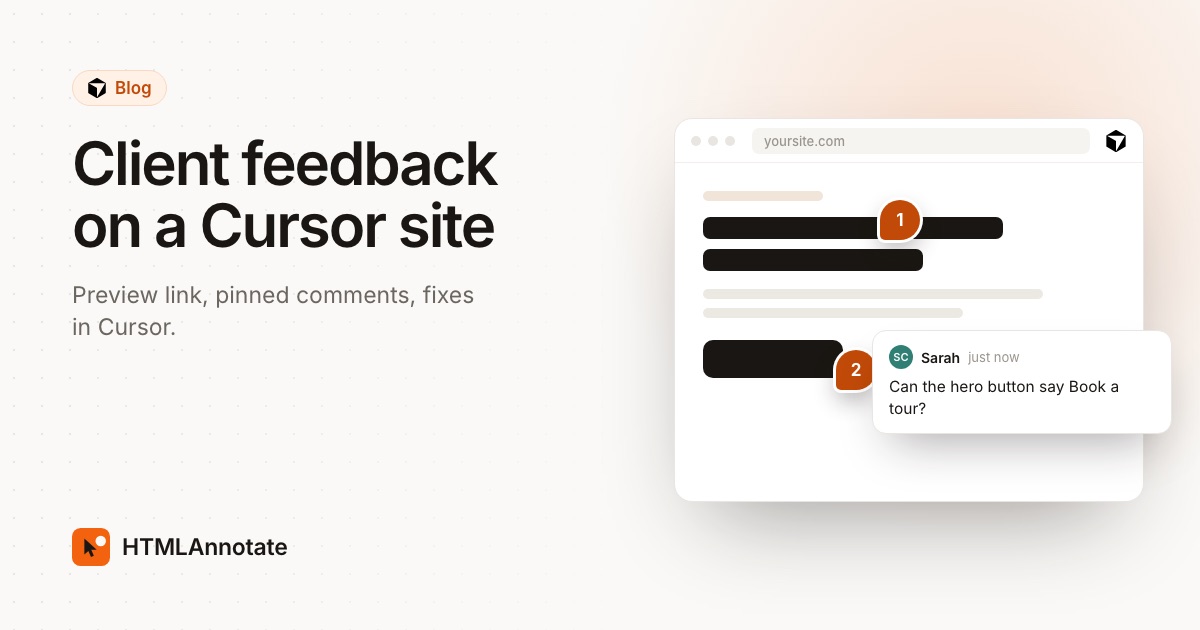
The loop you are setting up
- You build the site in Cursor, as usual.
- You turn it into a link that works outside your computer.
- You share that link on HTMLAnnotate and send your client the review link.
- Your client clicks on the page to leave comments pinned to the exact element.
- Cursor reads those comments through HTMLAnnotate's MCP server, fixes the code, and closes each comment.
Steps 2 and 5 are where most of the time goes today. The rest of this guide covers each step in order.
Step 1: get a link your client can open
The address you test with in Cursor, something like http://localhost:3000, only works on your machine. Send it to a client and they get an error page. You need a public address, and there are two easy routes.
If the site has a build step or several pages: deploy a preview
Most hosts give every change its own preview address, separate from your live site. Push the branch from Cursor's terminal or source control panel, or deploy from the command line:
- Vercel creates a preview deployment when you push to a branch that isn't your production branch, open a pull request, or run
vercelwithout the--prodflag. Each preview has a branch URL that always points to the latest commit on that branch, and a URL for that one commit. - Netlify builds a Deploy Preview when you open a pull request, at an address like
deploy-preview-42--yoursite.netlify.app. From the command line,netlify deploywithout--prodmakes a draft deploy at its own unique URL. - Cloudflare Pages makes a preview deployment for each new branch and pull request, at a
pages.devaddress. Each branch also gets an alias that points to its latest commit.
# Vercel: a preview, not production
vercel

# Netlify: a draft deploy, not production
netlify deploy
Before you share it, open the preview in a private browser window. If it asks you to log in, your client will hit the same wall, and so will HTMLAnnotate. New Vercel projects protect previews with Vercel Authentication by default, so visitors need a Vercel account with access to the project. Change that in the project's Deployment Protection settings for the review round. Cloudflare Pages previews are public by default, and Netlify lets you add a password or make a project private, so check what you have set.
If it is one static page: keep it as one HTML file
For a landing page or a one-pager, ask Cursor's agent to put all the CSS and scripts inline so the page is a single self-contained HTML file. You can share that file directly, with no host at all. HTMLAnnotate takes files up to 1 MB on Free and 10 MB on Pro and Team. If you want to compare other ways to host a file, see how to share an HTML file as a link.
Step 2: add HTMLAnnotate's MCP server to Cursor
MCP (Model Context Protocol) lets Cursor's agent use tools in other apps. If the term is new, read what an MCP server is, in plain words. You add this one once.
Cursor keeps MCP servers in an mcp.json file: ~/.cursor/mcp.json in your home folder makes a server available in every project, and .cursor/mcp.json inside a project limits it to that project. Paste this into the global file, or press Add to Cursor on the MCP setup page:
{
  "mcpServers": {
    "htmlannotate": { "url": "https://mcp.htmlannotate.com" }
  }
}
Then open Cursor's MCP settings and check HTMLAnnotate is switched on. That address needs no account and no API key, and its links last 1 day.
To keep pages in your HTMLAnnotate account, use https://mcp.htmlannotate.com/account as the URL instead. In Cursor's MCP settings, press Connect next to HTMLAnnotate, sign in on htmlannotate.com and press Allow. Pages then land in My projects, links last 14 days on Free and forever on Pro and Team, and you can ask for any page by name.
To check it works, ask the agent: "Share a simple test page on HTMLAnnotate." By default, Cursor asks you to approve each MCP tool call before it runs, so you see every action before it happens.
Step 3: share the page for review
Ask Cursor's agent to share whichever link you made in step 1:
- A deploy preview: "Share https://my-site-git-review.vercel.app on HTMLAnnotate for client feedback." The agent uses the
share_urltool. The page has to open without signing in. - A single HTML file: "Share index.html on HTMLAnnotate for client feedback." The agent uses
share_htmlto publish the document.
Either way you get two links back. The review link goes to your client. The manage link stays with you, since anyone holding it can read and resolve comments. Without signing in, the agent can also ask for your email so HTMLAnnotate tells you when comments arrive. Signed in, you get the usual comment emails.
Step 4: your client comments on the page
Send the review link with a short note about what to check, for example: "First full draft. Please look at the headline, the pricing section and how it looks on your phone." Your client opens it in any browser, gives their name and email once, and clicks any heading, button or image to leave a comment. Nothing to install, and no account.
A deployed site runs live on the review copy, with its own scripts and menus, and your client can move between pages, each with its own comments. Forms don't submit on the review copy. They can also switch to the tablet or phone view, and suggest replacement wording that previews in place. For a deeper checklist of what to ask a reviewer to look at on AI-written pages, see reviewing AI-generated HTML.
Step 5: let Cursor read the comments and fix the code
This is where the loop pays off. Back in Cursor, with your project open, ask:
Read the comments on this HTMLAnnotate page and list the changes
you plan to make. Don't edit anything yet.
[paste the manage link, or the page name if you signed in]
The agent calls get_comments and gets each comment with the element and CSS selector it is pinned to, the view it was left in, the version, any suggested text and the replies. The selector points it at the right markup in your code, so "make this button bigger" stops being a guessing game. Signed in, it can find the page by name with list_pages instead of needing the manage link.
Read the plan, correct anything it misread, then say "Go ahead." Cursor edits your files the way it always does, and you review the diff.
Step 6: publish the new version, reply and resolve
How the next version reaches your client depends on how you shared it:
- Single HTML file: ask "Publish the updated page as a new version on the same review link." The agent uses
update_page. Your client keeps the same link, and earlier versions keep their comments. - Deploy preview: commit and push, or deploy again, so the host builds a new preview. Then ask the agent to share the new preview address and send your client the link.
Then close the round from the same chat:
Reply to each comment you changed with one line on what you did,
then mark those comments resolved. Leave anything about pricing
open and reply asking me to confirm.
The agent uses reply_to_comment and resolve_comment. Replies go to the people in the thread, so check the wording before you approve the tool call. Repeat the loop until your client presses Approve on a version.
Tips for smoother rounds
- Use a stable preview address. Vercel's branch URL and Cloudflare's branch alias point to the latest commit, which saves you sending a new address every time the code changes.
- Ask for a plan before edits. One extra message catches misread comments before they reach your code.
- Keep facts with people. Prices, names and legal wording should come from you or the client, so tell the agent to flag those comments instead of changing them.
- Only resolve what changed. It keeps the comment list honest for the next round.
- Mind the 1 day limit. If a review will take longer, connect the signed-in address so the link lasts.
For more on the MCP side, including other AI tools that can run the same loop, read how to let your AI tool fix client feedback with MCP. For a short overview of HTMLAnnotate with Cursor, see the Works with Cursor page.
Questions
Can my client open my localhost link?
No. An address like http://localhost:3000 only works on your own computer. Your client needs a public address, such as a deploy preview on Vercel, Netlify or Cloudflare Pages, or a review link made from a single HTML file.
Does my client need Cursor or an account?
No. They get an ordinary review link, open it in any browser, give their name and email once, and click on the page to comment. Only you need Cursor.
Can Cursor change my live site through HTMLAnnotate?
No. For a single HTML page shared through the connector, Cursor can publish the next version on the same review link. For a deployed site, Cursor edits your code and you deploy a new preview as usual.
Why does HTMLAnnotate say it can't open my Vercel preview?
New Vercel projects protect preview deployments with Vercel Authentication, so visitors have to log in with a Vercel account. Open the preview in a private window to check. If it asks you to log in, change the protection in the project's Deployment Protection settings for the review round.
How long do review links last?
Through the no-account address, https://mcp.htmlannotate.com, links last 1 day. Connect https://mcp.htmlannotate.com/account and sign in instead, and links last 14 days on the Free plan and never expire on Pro and Team.
What if I don't want to connect an MCP server?
Share the page at htmlannotate.com/new instead. When the comments are in, press Copy for AI and paste the brief into Cursor's chat. Each item includes the element, CSS selector, view and any suggested text.
Add https://mcp.htmlannotate.com to Cursor and ask the agent to share your page for review. Free, and your client never needs an account.
Start a free review