Read and resolve comments
Comments arrive on the page itself, in your Inbox and by email. Reply where you need to, fix what was asked, then resolve each one so everyone knows it's done.
Where comments show up#
- On the review page. Each comment is a numbered pin on the element it's about. All comments (or Shift + C) opens the list.
- On the project page. The Comments tab lists every comment with its screenshot, element, screen size and replies.
- In your Inbox. Every comment and reply across all your pages, newest first, with a dot on anything new.
- By email. New comments on a page are gathered into one email, at most one every 10 minutes.
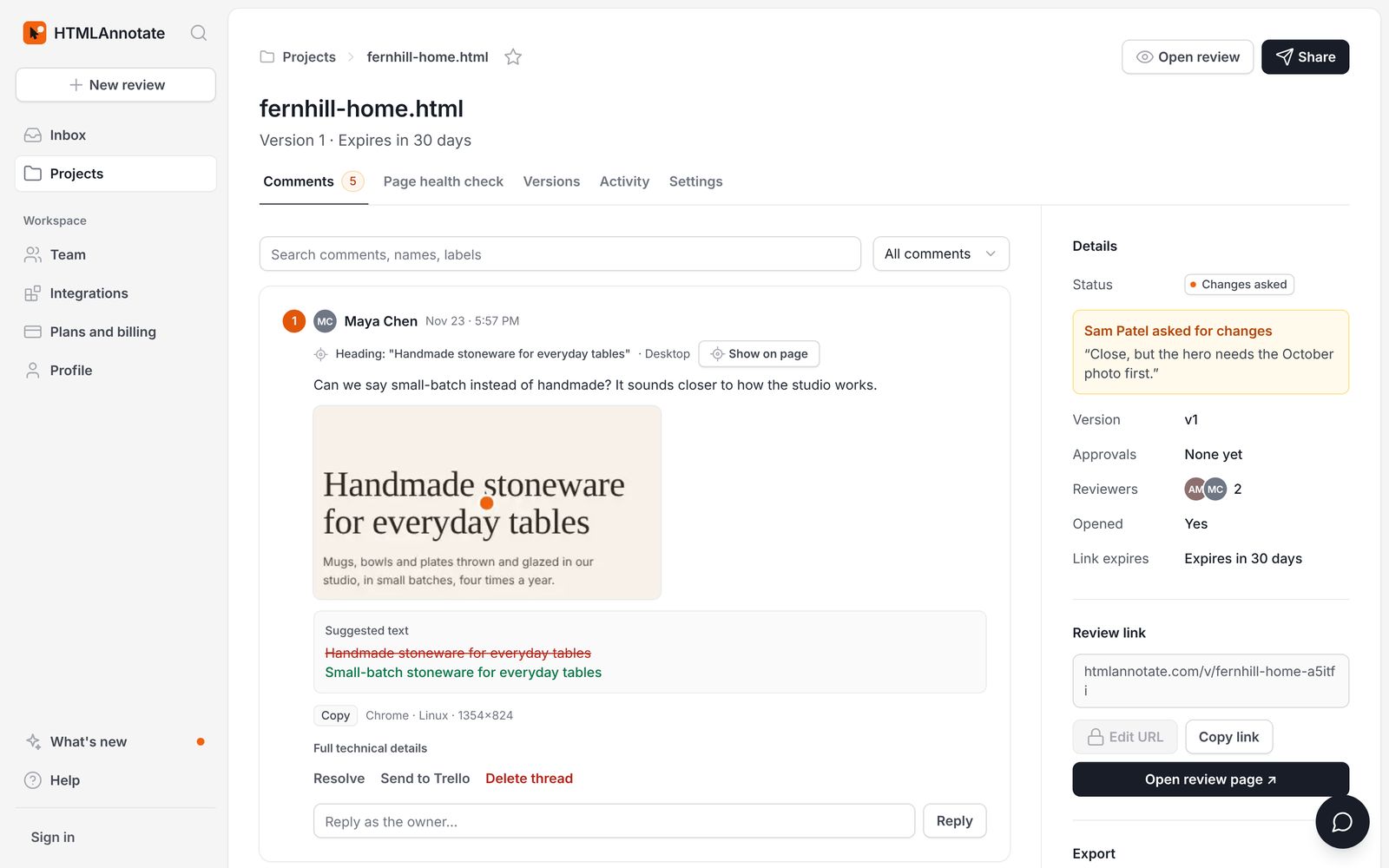
Reply to a comment#
Open the comment on the review page, the project page or in the Inbox.
Type in the reply box and press Reply.
Everyone in that thread gets an email with your reply, including the reviewer who left it.
Resolve a comment#
Press Resolve once the change is made. The comment moves out of the open list. Everyone in the thread gets an email saying it's done. Press Reopen if it needs more work.
For comments that take a while, set the status to In progress first, or assign them to a teammate. See Labels, priority and status.
Hand the comments to an AI#
If an AI tool built the page, it can make the fixes too. Copy for AI turns every open comment into one brief to paste into ChatGPT, Claude or Cursor. With the MCP server, your AI reads the comments itself, publishes the next version and resolves each one.
When a round is done#
- Publish a new version on the same link. Reviewers see a clean page and earlier comments stay with their version.
- Pause new comments to keep everything visible while you work.
- Send the round summary from the Versions tab: what was fixed and what carried over.
Written by the HTMLAnnotate team · Updated 23 November 2026 · View as Markdown · Something unclear? Tell us