Two connectors: which to use
The same MCP server has two addresses. One needs nothing at all. The other signs in to your HTMLAnnotate account, so pages are kept and found by name.
| Without an account | Signed in | |
|---|---|---|
| Address | https://mcp.htmlannotate.com | https://mcp.htmlannotate.com/account |
| Set-up | Paste the address | Paste the address, sign in once in your browser, press Allow |
| Where pages go | One-off links, not in any account | Your Projects, on your plan |
| How long links last | 1 day | 14 days on Free, forever on Pro and Team |
| Finding a page later | The AI needs the private manage link | Ask by name, even in a new chat |
| Replies show as | Page owner | Your name |
| Tools | 13 | 17 (adds list_pages, search_comments, send_comment, account_info) |
| Comment emails | If you give the AI your email when it shares | The usual HTMLAnnotate emails |
Which should I use?#
- Use the signed-in connector for real client work. Pages are kept, the AI finds them by name, and replies carry your name.
- Use the no-account connector to try HTMLAnnotate, or for a quick throwaway review where the link only needs to last a day.
Both are free. You can add both to the same app, or switch later. Pages you shared without an account stay where they are: they don't move into your account.
Without an account: the manage link#
Each share returns two links. The review link (/v/…) is for your client. The manage link (/manage/…#k=…) is private: it's how the AI reads and answers comments later. The AI keeps it in the conversation, but save it yourself too (a bookmark works), because in a new chat it's the only way back.
Links made without signing in, and their comments, are deleted after 24 hours. Use the signed-in connector for anything you need to keep.
How signing in works#
Add
https://mcp.htmlannotate.com/accountto your AI app.The first time the AI uses it, a browser window opens on htmlannotate.com.
Sign in with Google or an email code. You see which app is asking and what it will be able to do.
Press Allow. The window closes and the AI carries on.
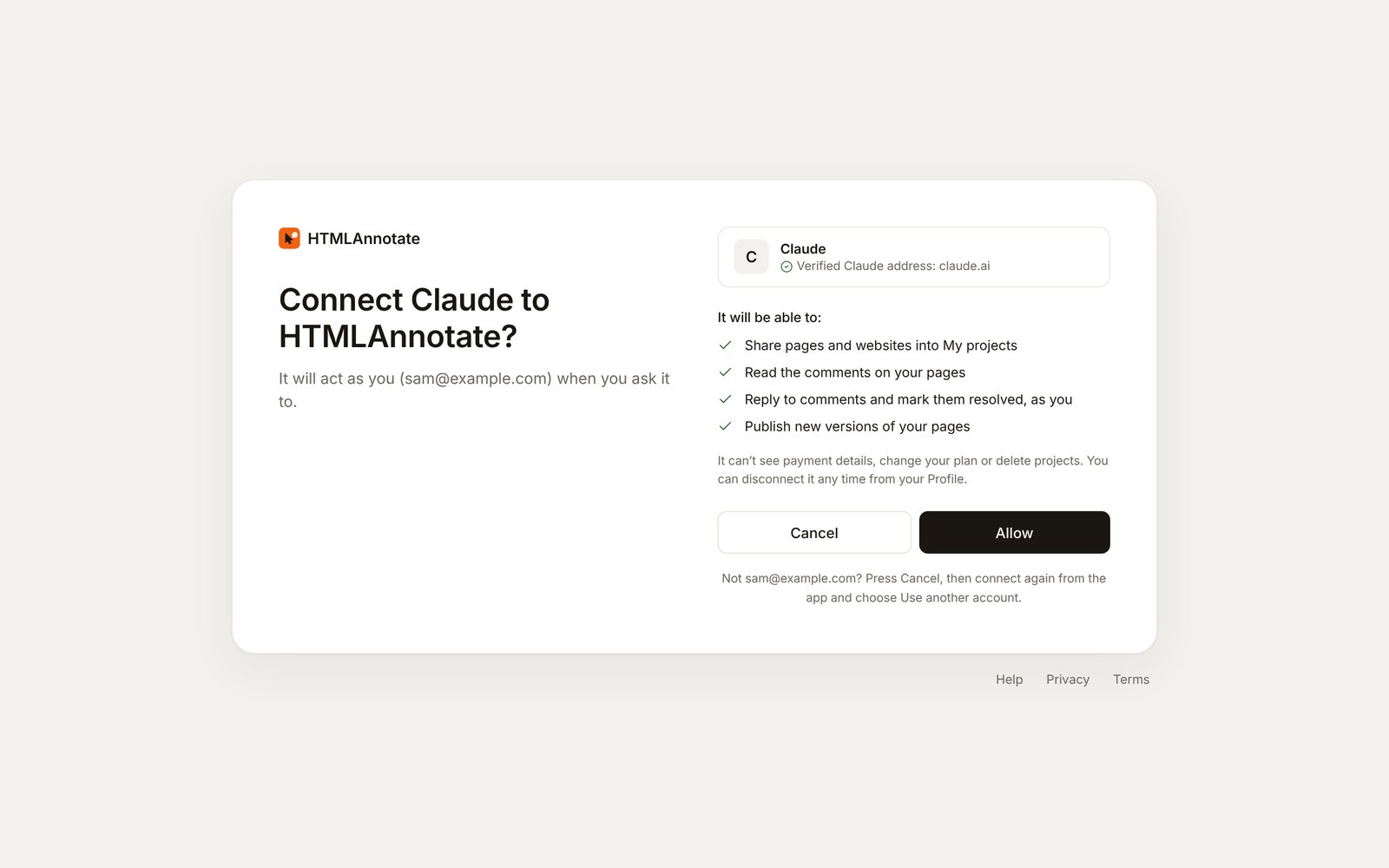
Your password and email codes never go to the AI app. It gets a key that only works for HTMLAnnotate. Technically, sign-in is OAuth 2.1 with PKCE and dynamic client registration, so apps that support remote MCP servers find it on their own.
What a signed-in AI can reach#
| It can | It can't |
|---|---|
| Share pages and websites into your Projects | See payment details or change your plan |
| Read every comment on your pages and your team's shared pages | Delete a page, a project or a comment |
| Reply, resolve and set status, priority, labels and assignees | Get into your account from an app you didn't approve |
| Publish and restore versions, change page settings | See your password or sign-in codes |
| Send comments to your connected Jira or Trello |
Only Claude, ChatGPT, Cursor, VS Code and apps running on your own computer (like Claude Code) can be approved. Any other app is refused on the approval page.
Disconnect an app#
Open Profile and press Disconnect next to the app under Connected AI apps. It loses access straight away. Also remove HTMLAnnotate from the app's own connector settings. Review links you already made keep working.
Written by the HTMLAnnotate team · Updated 23 November 2026 · View as Markdown · Something unclear? Tell us