Commenting on PDFs
A shared PDF opens with every page in a column. Reviewers scroll, zoom in on the detail they mean, and pin a comment to any spot.
Comment on a PDF#
Open the review link and choose Comment.
Click (or on a phone, tap) the spot you mean. On a phone, press Comment here.
Type your note and post it. The pin stays on that spot of that page at any zoom.
Zoom#
| How | Where |
|---|---|
| The Zoom in and Zoom out buttons | Desktop and phone |
| Press the percentage to fit the page to the screen's width again | Desktop and phone |
| Pinch with two fingers | Phone and tablet |
| Ctrl and scroll | Desktop |
100% fits the page to the width of the screen, and you can zoom up to 600%. The page sharpens once you stop zooming, so small print stays readable.
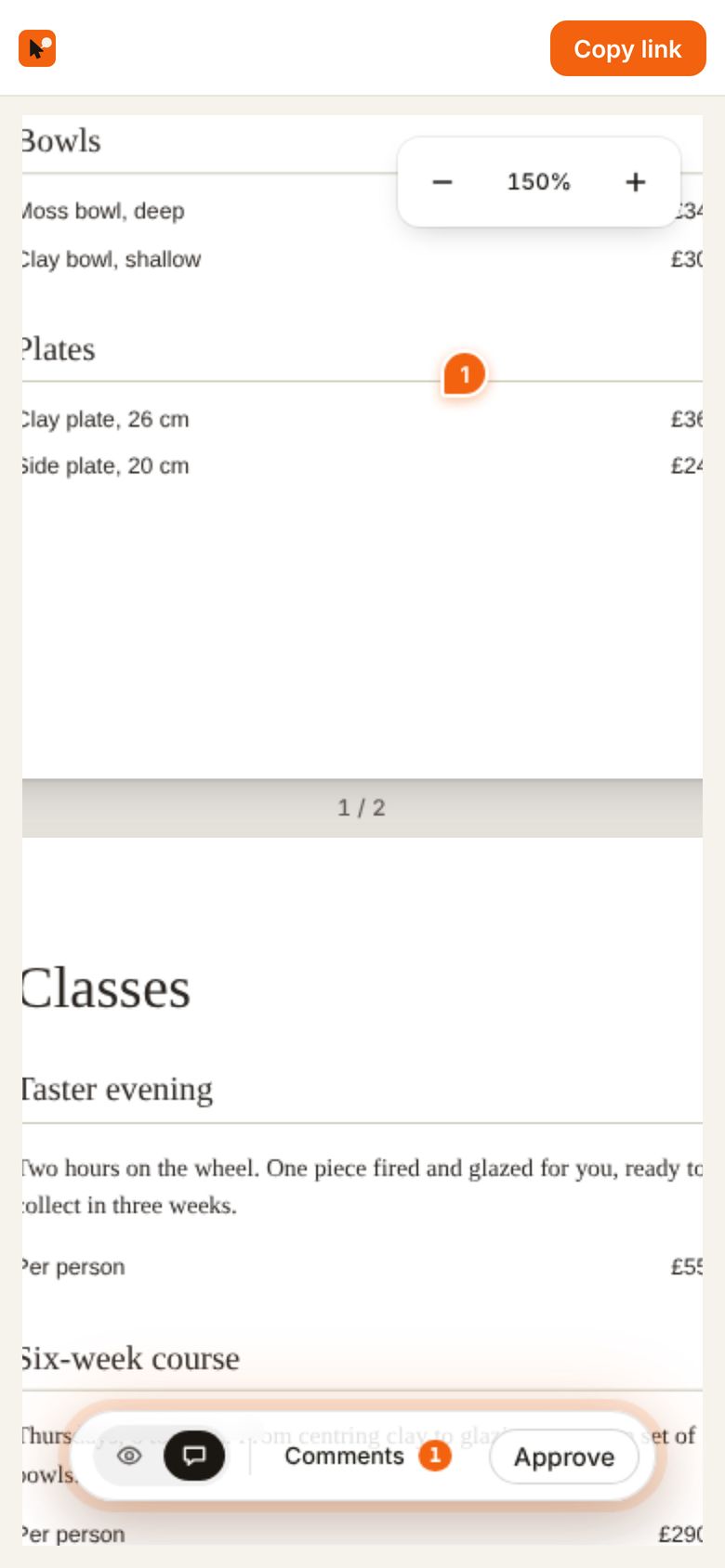
A pinch never starts a comment, so reviewers can zoom freely in Comment mode.
Written by the HTMLAnnotate team · Updated 23 November 2026 · View as Markdown · Something unclear? Tell us