Versions
Made the changes? Publish them as a new version on the same review link. Reviewers see a clean page, earlier versions keep their comments, and nothing gets lost.
Publish a new version#
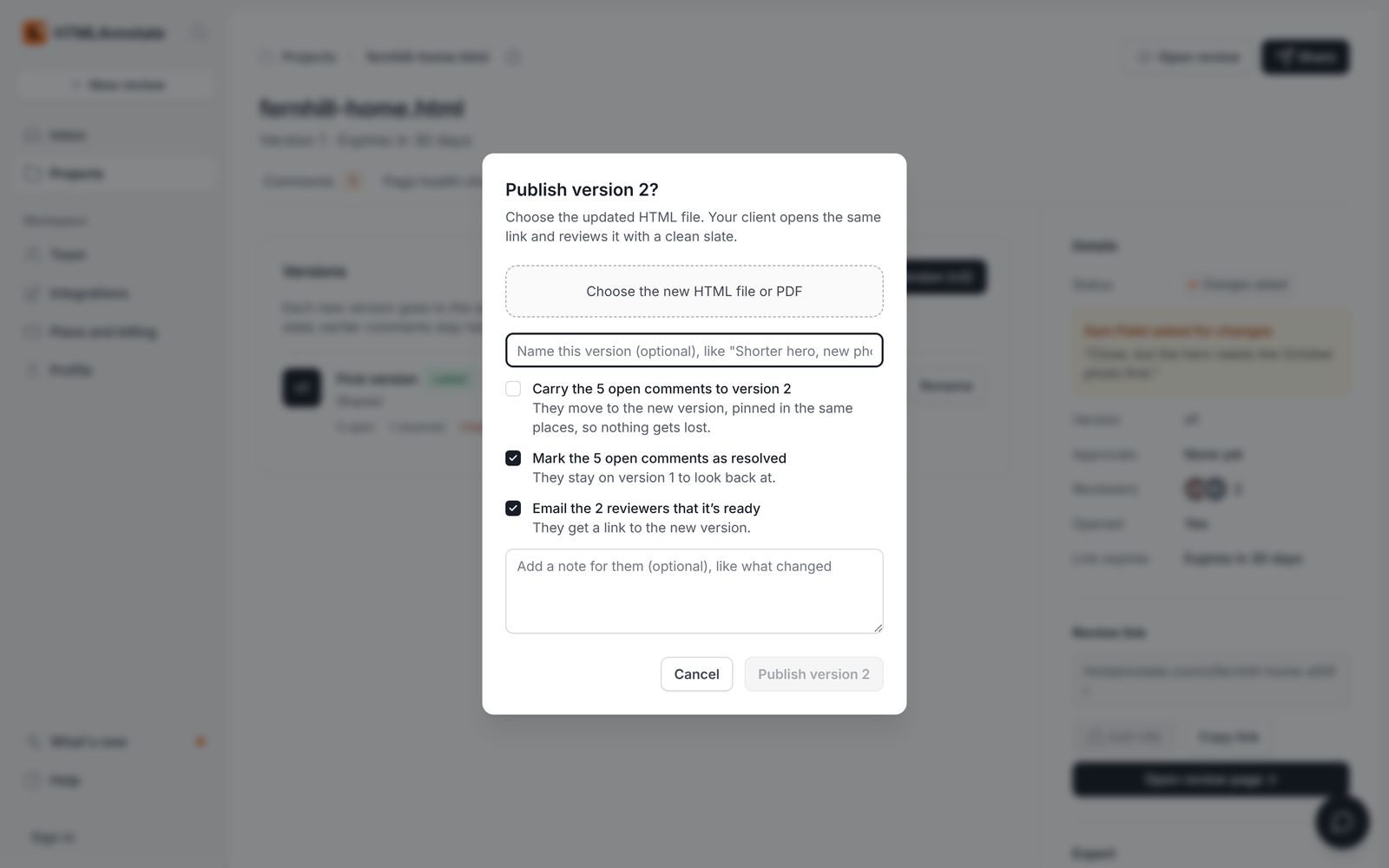
Open the project and choose the Versions tab.
Press Upload a new version (for a live site it says Send a new version).
Choose what the new version shows:
- For a file: the updated HTML file or PDF.
- For a live site: The same website (it's loaded again with your latest changes), A different website link (say your staging site moved to the live address) or An HTML file.
Optionally name it, like Shorter hero, new photo.
Decide what happens to comments still open on the current version:
- Carry them to the new version, pinned in the same places, or
- Mark them as resolved. They stay on the old version to look back at.
Tick Email the reviewers to send everyone who commented a link to the new version, with a note if you like.
Press Publish version.
Looking back at earlier versions#
The Versions tab lists every version with its name, date, open and resolved comments, and who approved it. Open shows any earlier version as it was. Reviewers can switch versions from the review page too.
Restore an earlier version#
Press Restore next to an earlier version. It goes live again as a new version on the same link. Nothing is deleted: the version you replaced and its comments stay in the list.
Round summary#
Once there are two versions, the Versions tab shows a round summary: how many comments were fixed, carried forward or left open. Copy summary gives you a short note to send the client, with the review link at the end.
Limits#
| Plan | Versions per page |
|---|---|
| Free | 3 |
| Pro and Team | Unlimited |
Your AI tool can publish versions too, with the update_page tool.
Written by the HTMLAnnotate team · Updated 23 November 2026 · View as Markdown · Something unclear? Tell us