Comment and Browse modes
The review page has two modes. Browse uses the page like a visitor would. Comment makes the next click start a note pinned to whatever you clicked.
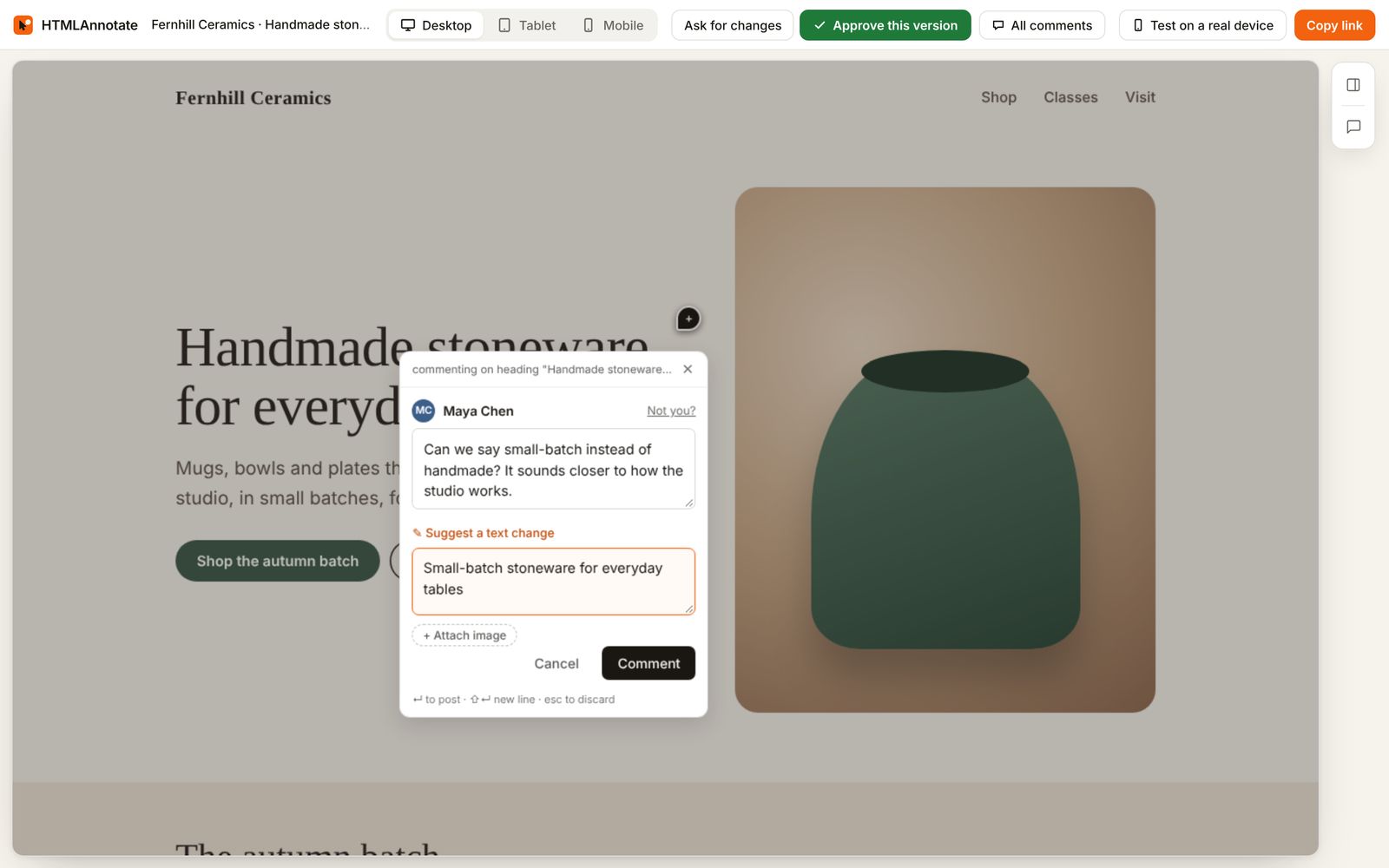
Leave a comment#
Open the review link. The bar at the bottom of the page shows Browse and Comment.
Choose Comment, or press C. Whatever is under the pointer gets an outline.
Click the heading, button, image or spot you mean. A comment box opens beside it.
Type your note and press Comment (or Enter). The first time, you type your name and email before the comment box opens.
The comment becomes a numbered pin on the page. Anyone with the link sees it, can reply, and you get an email.
Comment on anything#
- Text, buttons and links. The comment is tied to that element, so it stays with it when the layout changes.
- Images and SVG graphics. A note like make the logo bigger sits on the logo.
- Empty space. Click any spot, even a gap between sections, and the pin goes exactly there.
Browse mode#
Choose Browse, or press V or Esc, to open menus, follow links and scroll without starting a comment. On an imported site, links take you to other pages of the site, and each page keeps its own comments.
Pins and the comments list#
- Click a pin to open its thread. The page scrolls to the element and lights it up for a moment.
- All comments in the top bar, or Shift + C, opens the list of every comment in the current view.
- Hide the pins to see the page clean, then bring them back in one click.
Keyboard shortcuts#
| Key | What it does |
|---|---|
| C | Switch Comment mode on or off |
| V or Esc | Back to Browse |
| Shift + C | Open the comments list |
| ] or Cmd + \ | Open or tuck away the side panel |
Commenting on a phone works a little differently: a tap selects first. See Commenting on a phone.
Written by the HTMLAnnotate team · Updated 23 November 2026 · View as Markdown · Something unclear? Tell us